> ## Documentation Index
> Fetch the complete documentation index at: https://penseapp.vercel.app/docs/llms.txt
> Use this file to discover all available pages before exploring further.
# Tools
> Learn how to create tools for your agents
Tools extend your agents' capabilities by enabling them to perform actions and produce structured outputs. There are two types of tools available:
* **Webhook tools** — Call external APIs or services to perform actions
* **Structured output tools** — Extract information from conversations in a defined format
## Navigate to tools
From the sidebar, click **Tools** to view and manage your tools.
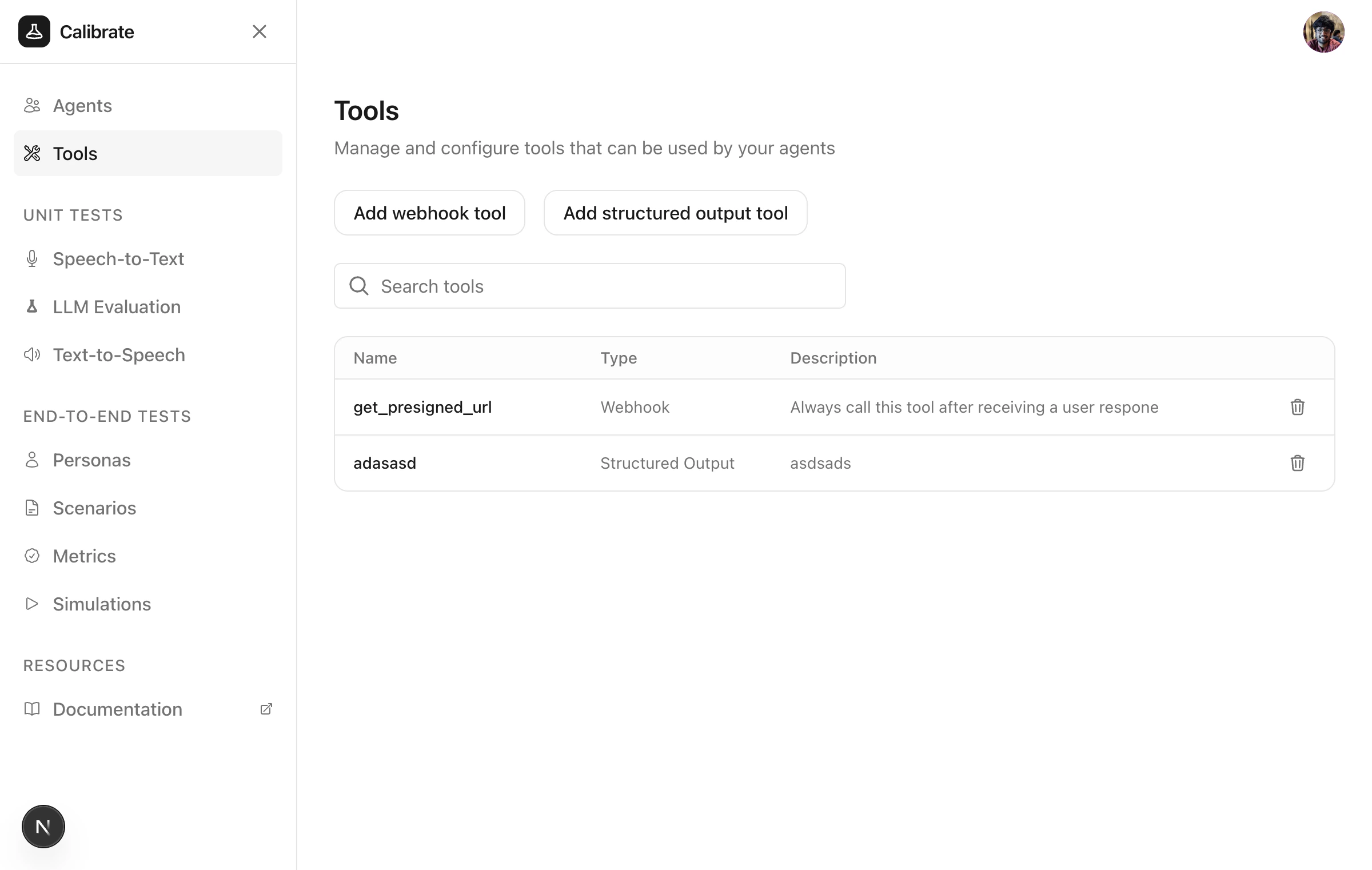 ## Webhook tools
Webhook tools allow agents to call external APIs or services to perform actions like sending notifications or querying databases.
### Create a webhook tool
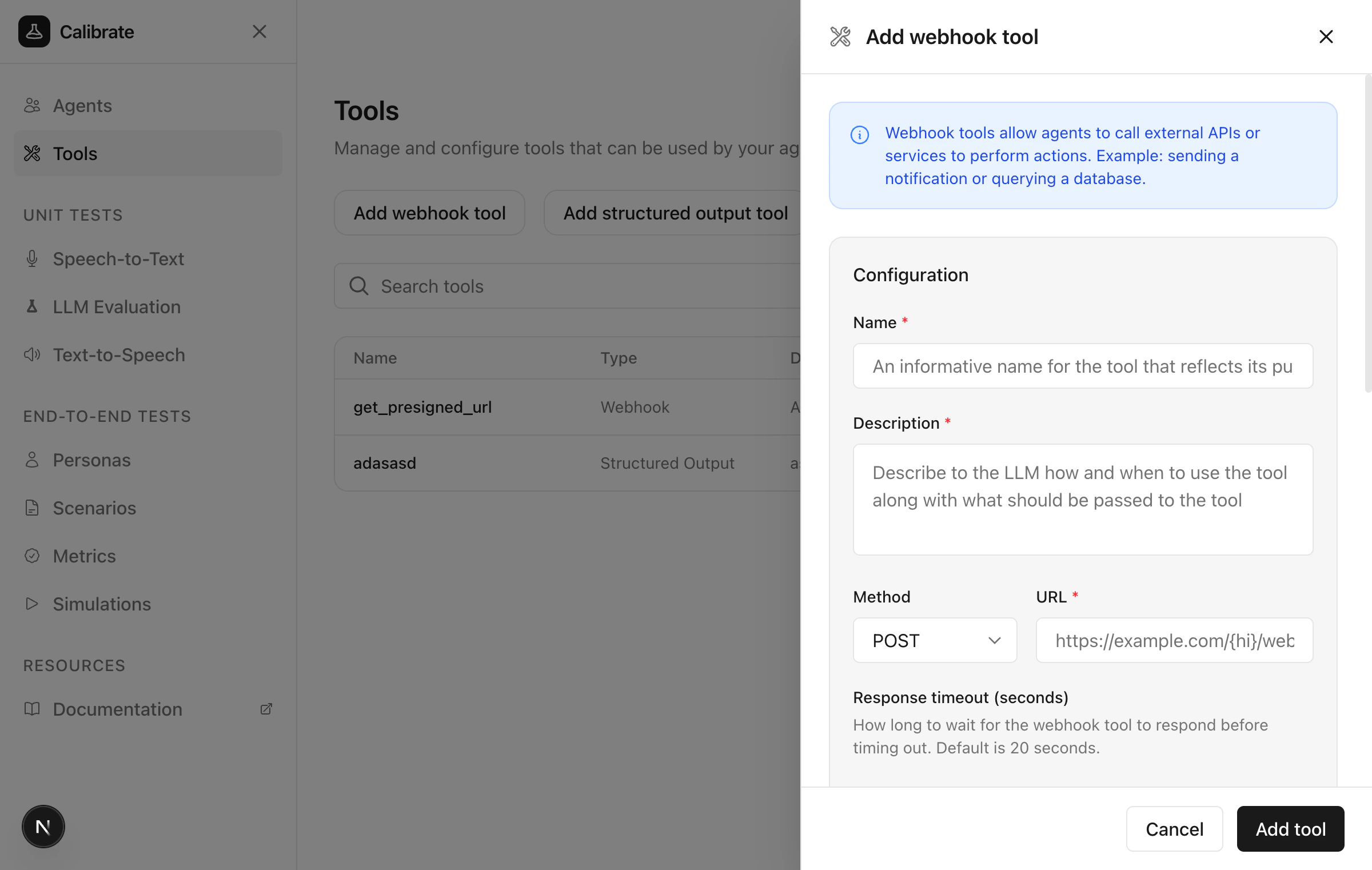
Click **Add webhook tool** to open the configuration panel.
## Webhook tools
Webhook tools allow agents to call external APIs or services to perform actions like sending notifications or querying databases.
### Create a webhook tool
Click **Add webhook tool** to open the configuration panel.
 ### Configure the tool
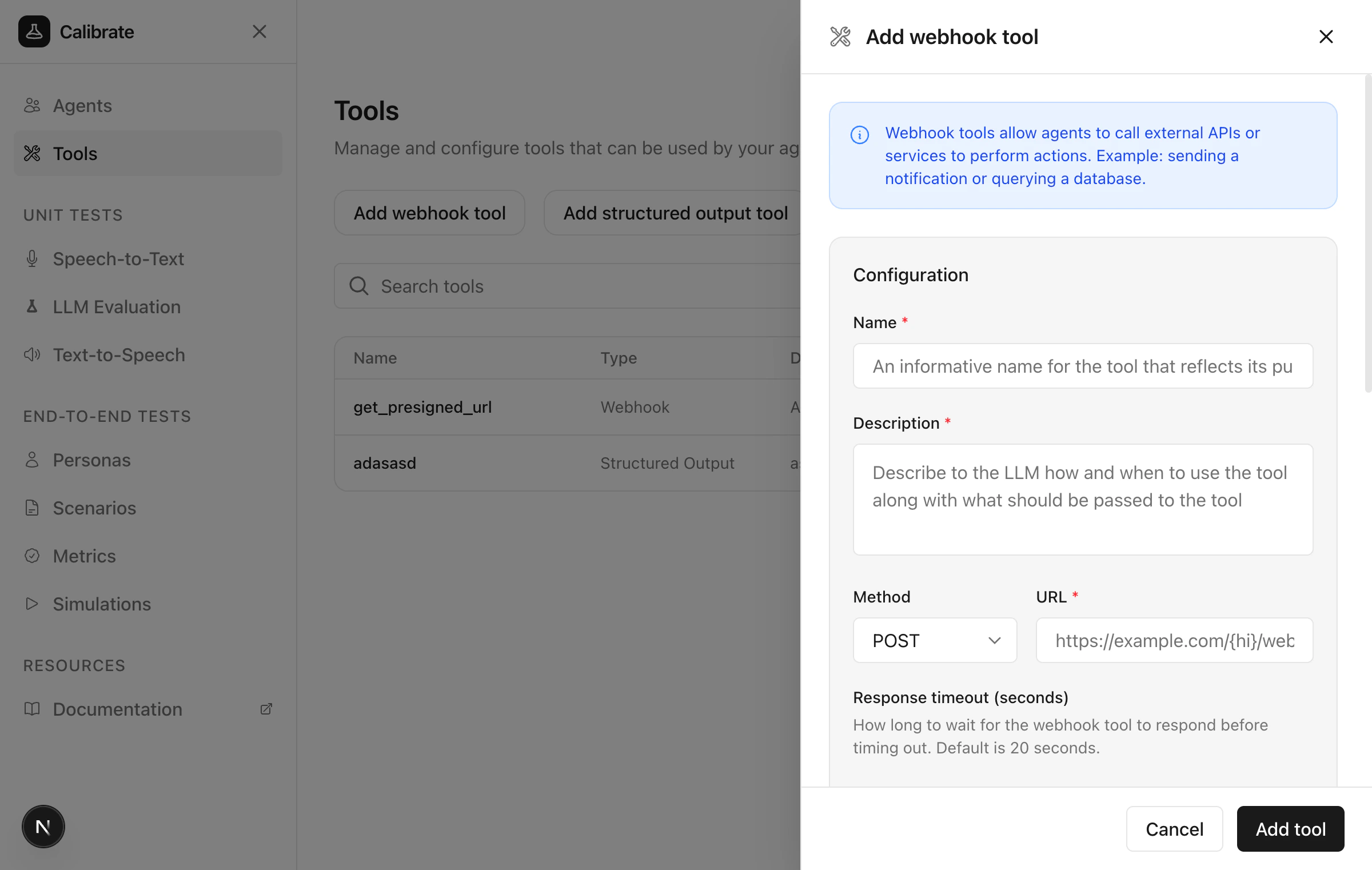
Provide the following details:
**Name and Description**
Add a descriptive name and explain when the agent should call this tool.
**Request Configuration**
* **Method** — Select HTTP method (GET, POST, PUT, PATCH, DELETE)
* **URL** — The webhook endpoint URL
* **Response timeout** — How long to wait before timing out (default: 20 seconds)
### Configure the tool
Provide the following details:
**Name and Description**
Add a descriptive name and explain when the agent should call this tool.
**Request Configuration**
* **Method** — Select HTTP method (GET, POST, PUT, PATCH, DELETE)
* **URL** — The webhook endpoint URL
* **Response timeout** — How long to wait before timing out (default: 20 seconds)
 **Headers** (Optional)
Define headers to include in the request.
**Query Parameters** (Optional)
Define parameters the LLM will collect and send as query strings.
**Body Parameters** (Optional)
Define the request body structure with a description and properties the LLM should collect.
Click **Add tool** to save.
## Structured output tools
Structured output tools enable agents to extract information from conversations in a defined format, such as user names or order details.
### Create a structured output tool
Click **Add structured output tool** to open the configuration panel.
**Headers** (Optional)
Define headers to include in the request.
**Query Parameters** (Optional)
Define parameters the LLM will collect and send as query strings.
**Body Parameters** (Optional)
Define the request body structure with a description and properties the LLM should collect.
Click **Add tool** to save.
## Structured output tools
Structured output tools enable agents to extract information from conversations in a defined format, such as user names or order details.
### Create a structured output tool
Click **Add structured output tool** to open the configuration panel.
 ### Configure the tool
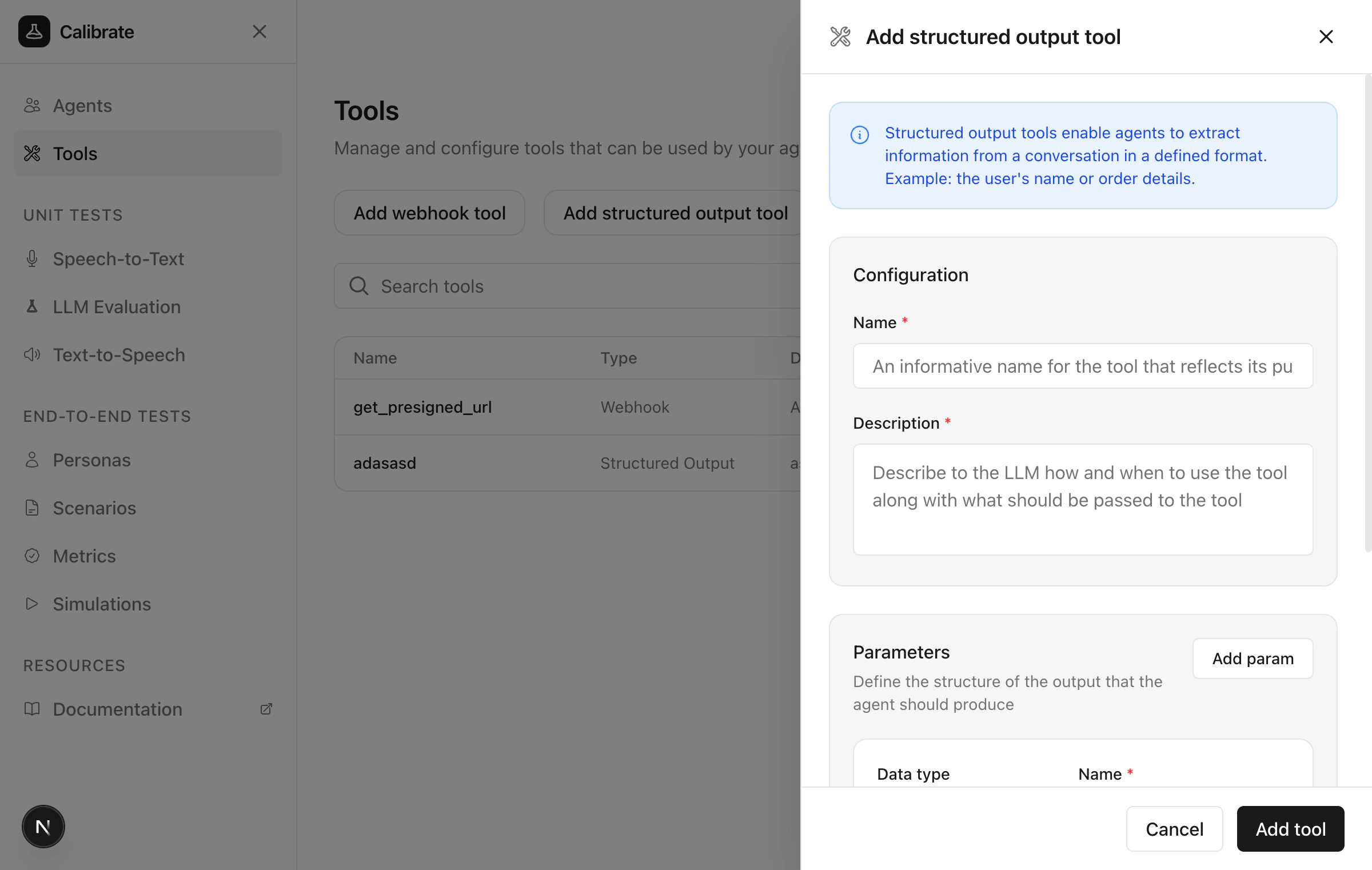
Provide the following details:
**Name and Description**
Add a descriptive name and explain when the agent should call this tool.
**Parameters**
Define the structure of data the agent should extract.
### Configure the tool
Provide the following details:
**Name and Description**
Add a descriptive name and explain when the agent should call this tool.
**Parameters**
Define the structure of data the agent should extract.
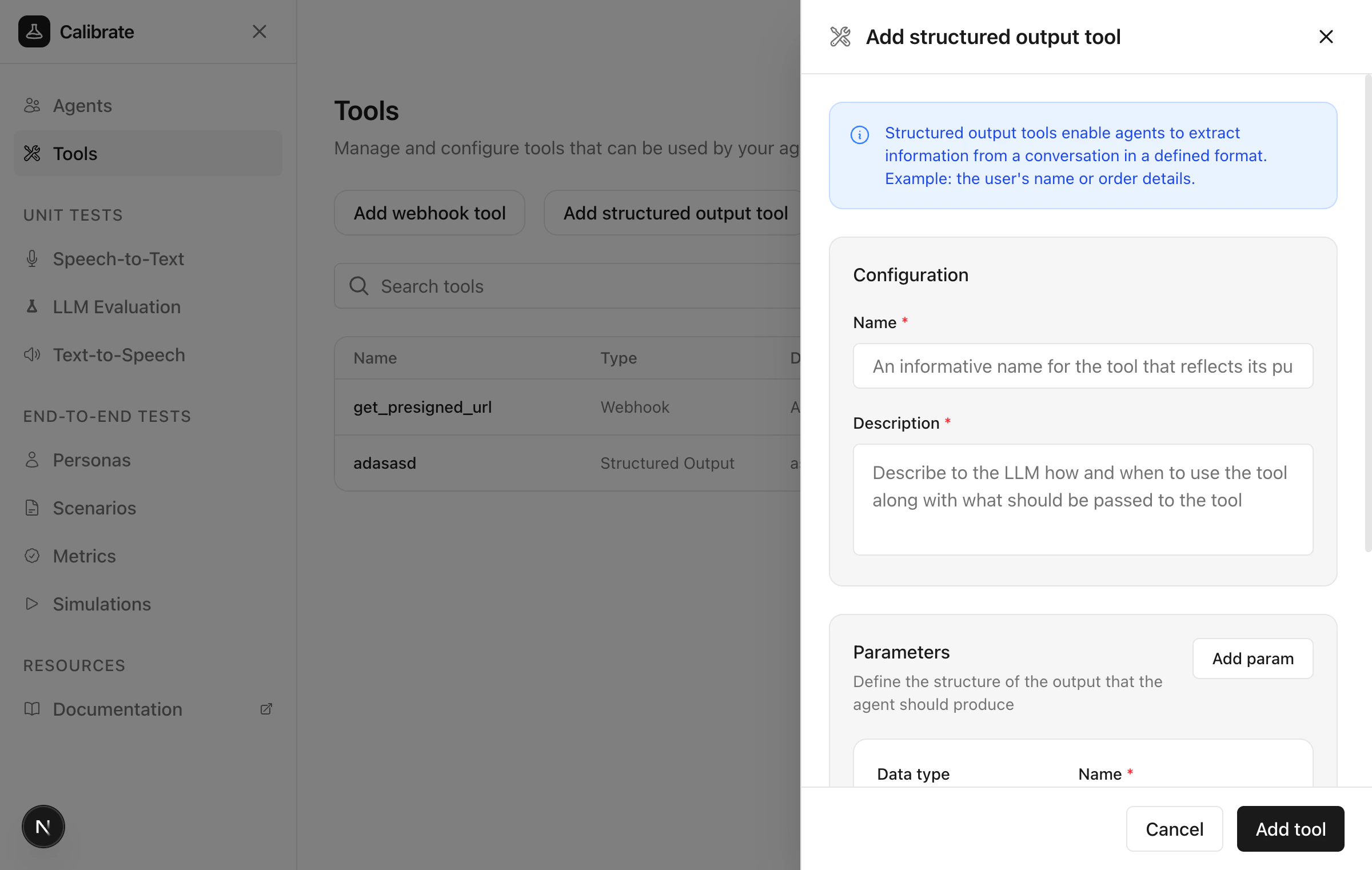 For each parameter, specify:
* **Data type** — Boolean, Integer, Number, String, Object, or Array
* **Name** — The parameter identifier
* **Required** — Whether this field is mandatory
* **Description** — Detailed guidance for the LLM on what this parameter represents
Click **Add param** to add more parameters. Click **Add tool** to save.
## Inbuilt tools
Some tools are built into the platform and enabled by default:
| Tool | Description |
| -------------------- | -------------------------------- |
| **End conversation** | Allows the agent to end the call |
## Next steps
Learn how to create and configure agents
Test tool invocations with your agent
For each parameter, specify:
* **Data type** — Boolean, Integer, Number, String, Object, or Array
* **Name** — The parameter identifier
* **Required** — Whether this field is mandatory
* **Description** — Detailed guidance for the LLM on what this parameter represents
Click **Add param** to add more parameters. Click **Add tool** to save.
## Inbuilt tools
Some tools are built into the platform and enabled by default:
| Tool | Description |
| -------------------- | -------------------------------- |
| **End conversation** | Allows the agent to end the call |
## Next steps
Learn how to create and configure agents
Test tool invocations with your agent