> ## Documentation Index
> Fetch the complete documentation index at: https://penseapp.vercel.app/docs/llms.txt
> Use this file to discover all available pages before exploring further.
# Simulations
> Run simulated conversations with your agents
[Calibrate](https://calibrate.artpark.ai) lets you simulate entire conversations with your agent using simulated users matching the personas of your target audience for specific scenarios defined by you. This guide walks you through setting up and running your first simulation.
## Create an agent
From the sidebar, click **Agents** → **New agent**. You have two options for setting up your agent:
 Configure the LLM/STT/TTS models, set instructions, and define the tools your agent can use — all within Calibrate.
See our [Core Concepts: Agents](/docs/core-concepts/agents) guide for the full setup.
If you already have a deployed agent, you can connect it to Calibrate via its HTTP endpoint. Calibrate will call your agent directly to run simulations.
See our [Core Concepts: Agent Connections](/docs/core-concepts/agent-connections) guide for the full setup.
Agent connections support **text simulations** only. For **voice simulations** (with STT/TTS latency metrics), use an agent built within Calibrate with STT and TTS providers configured.
## Create personas
From the sidebar under **End-to-End Tests**, click **Personas** → **Add persona**.
Configure the LLM/STT/TTS models, set instructions, and define the tools your agent can use — all within Calibrate.
See our [Core Concepts: Agents](/docs/core-concepts/agents) guide for the full setup.
If you already have a deployed agent, you can connect it to Calibrate via its HTTP endpoint. Calibrate will call your agent directly to run simulations.
See our [Core Concepts: Agent Connections](/docs/core-concepts/agent-connections) guide for the full setup.
Agent connections support **text simulations** only. For **voice simulations** (with STT/TTS latency metrics), use an agent built within Calibrate with STT and TTS providers configured.
## Create personas
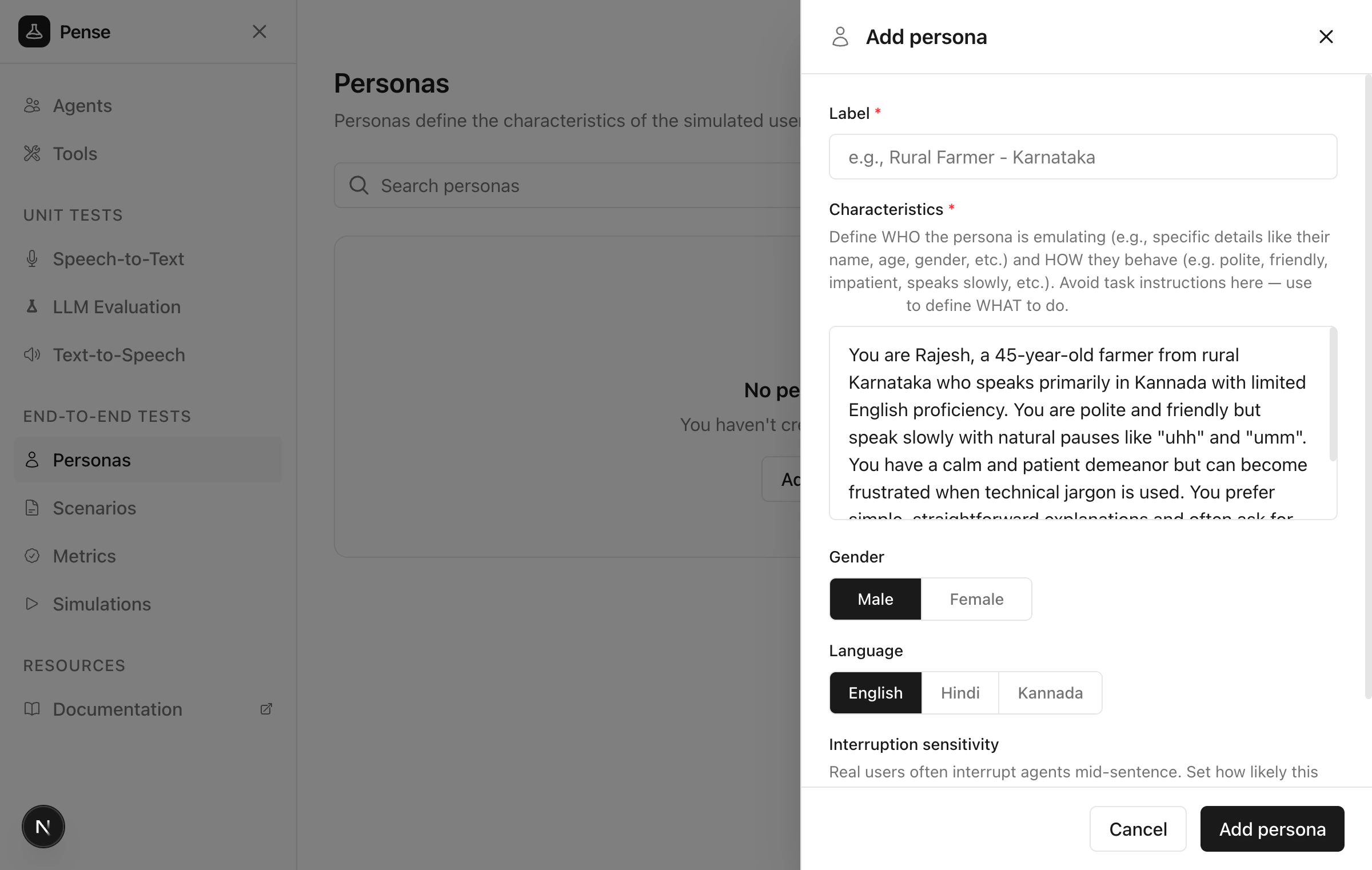
From the sidebar under **End-to-End Tests**, click **Personas** → **Add persona**.
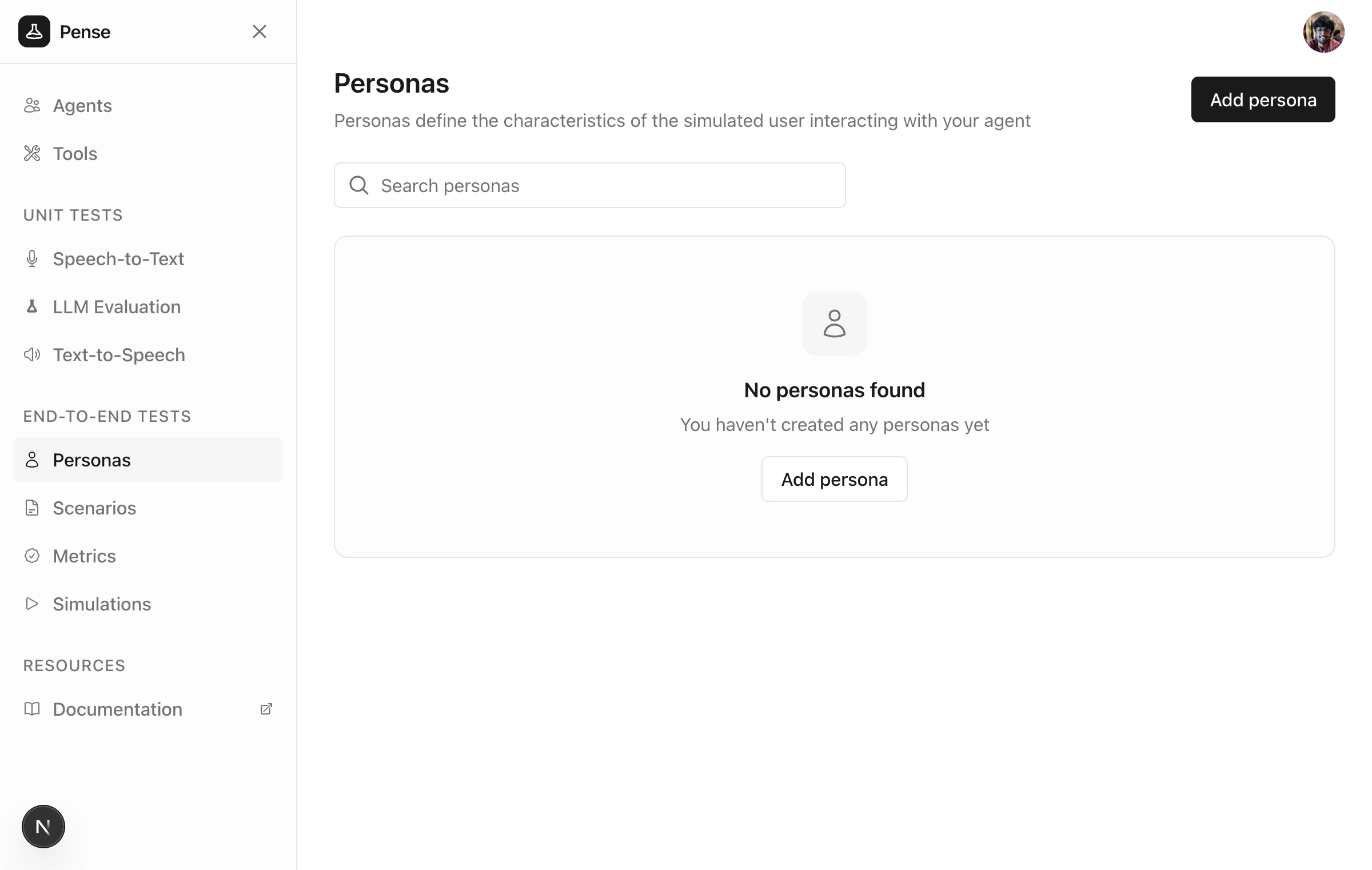 Define `WHO` the simulated user is - their personality, speaking style, and behavior.
Learn more about personas in [Core Concepts -
Personas](/docs/core-concepts/personas)
Define `WHO` the simulated user is - their personality, speaking style, and behavior.
Learn more about personas in [Core Concepts -
Personas](/docs/core-concepts/personas)
 ## Create scenarios
Click **Scenarios** → **Add scenario**.
## Create scenarios
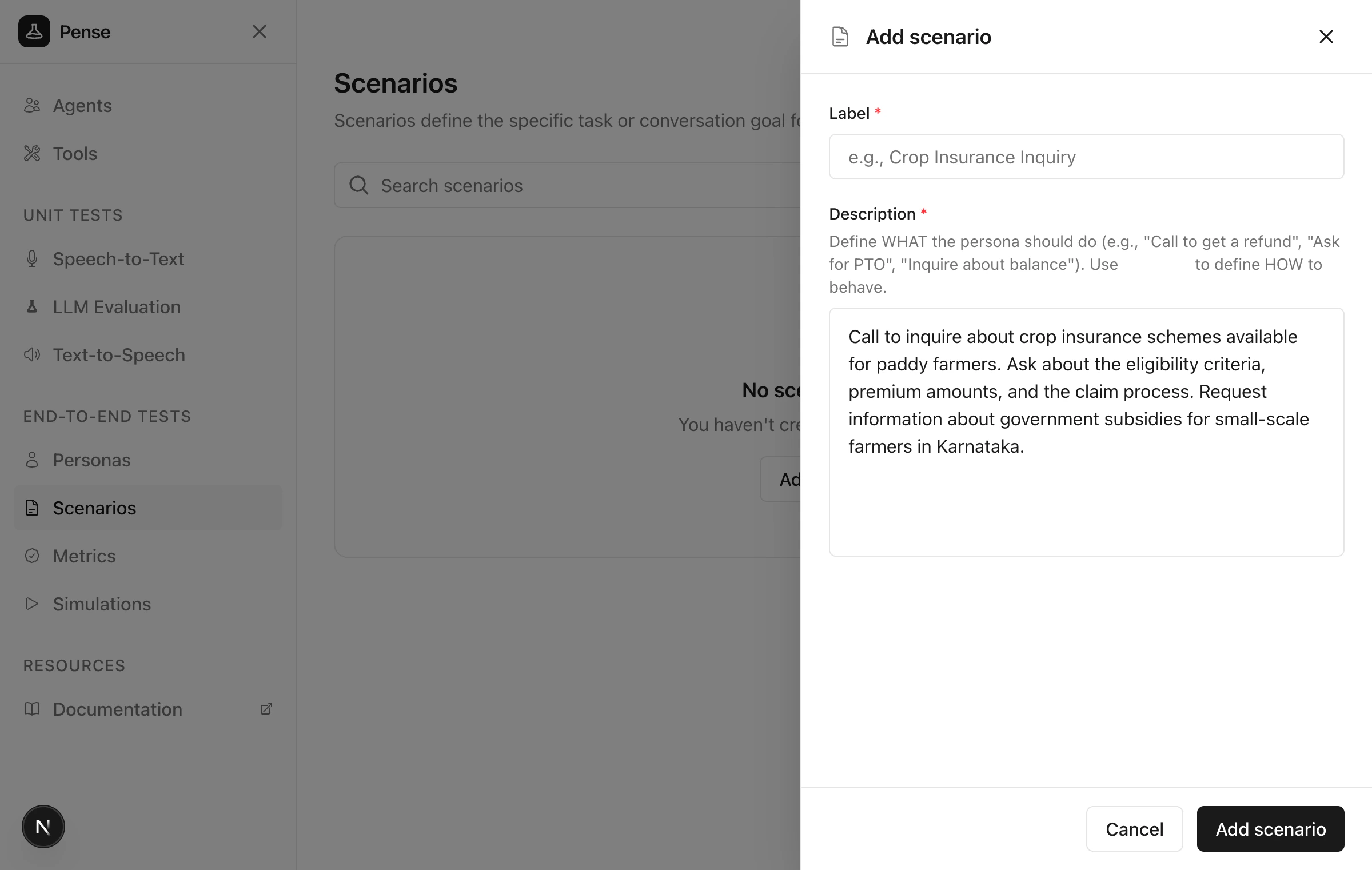
Click **Scenarios** → **Add scenario**.
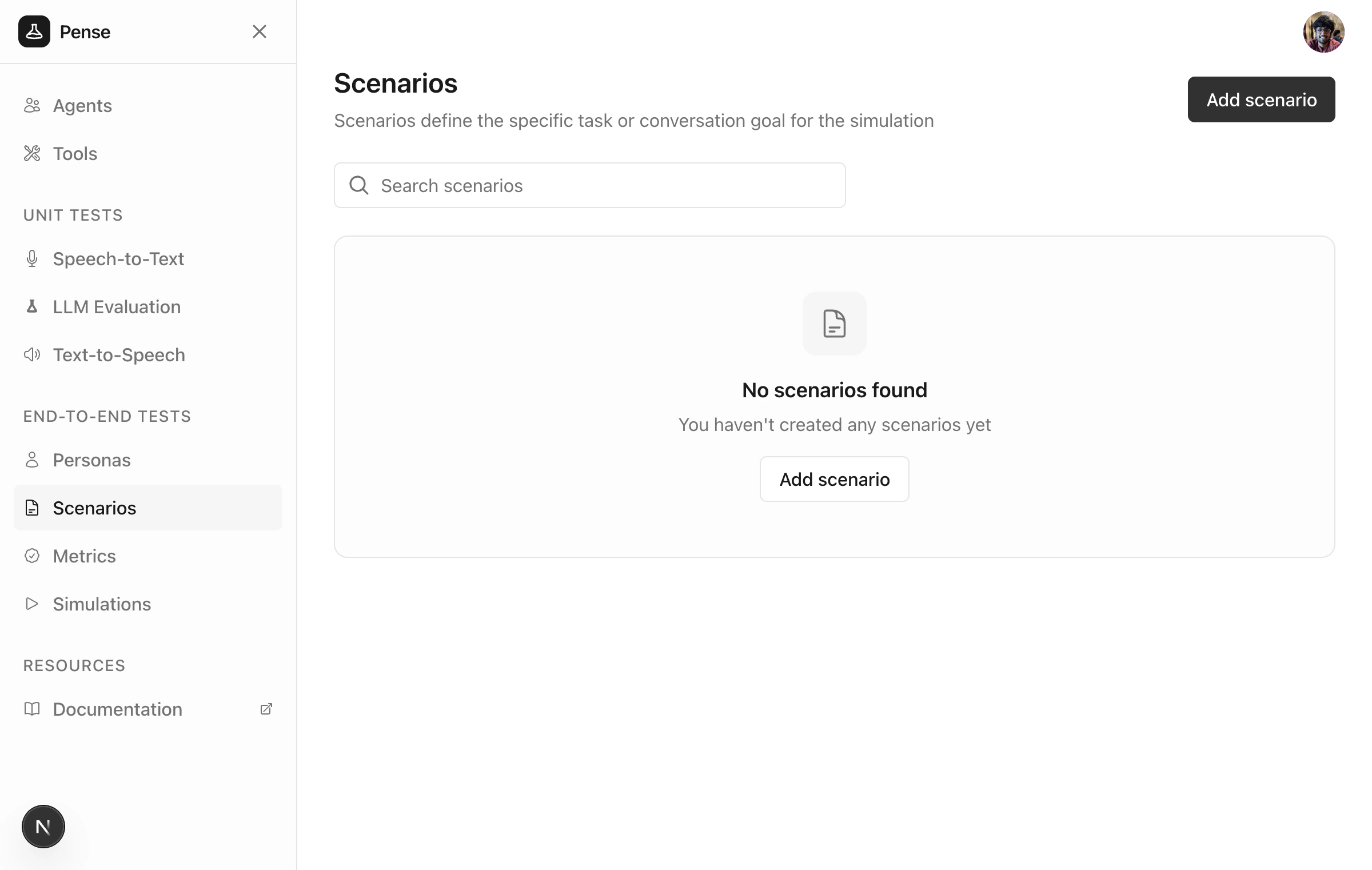 Define `WHAT` the simulated user should accomplish during the conversation.
Learn more about scenarios in [Core Concepts -
Scenarios](/docs/core-concepts/scenarios)
Define `WHAT` the simulated user should accomplish during the conversation.
Learn more about scenarios in [Core Concepts -
Scenarios](/docs/core-concepts/scenarios)
 ## Create metrics
Click **Metrics** → **Add metric**.
## Create metrics
Click **Metrics** → **Add metric**.
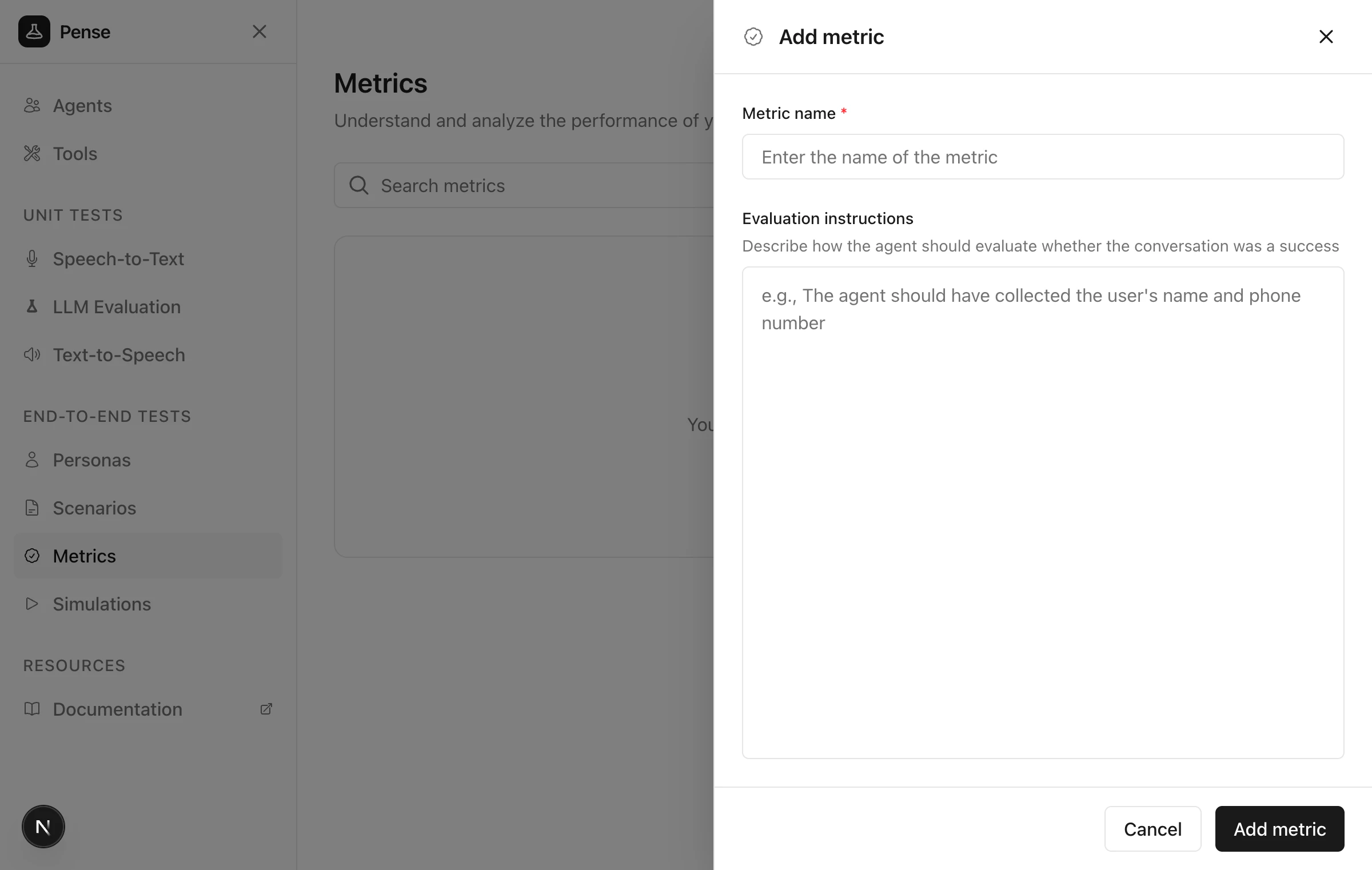
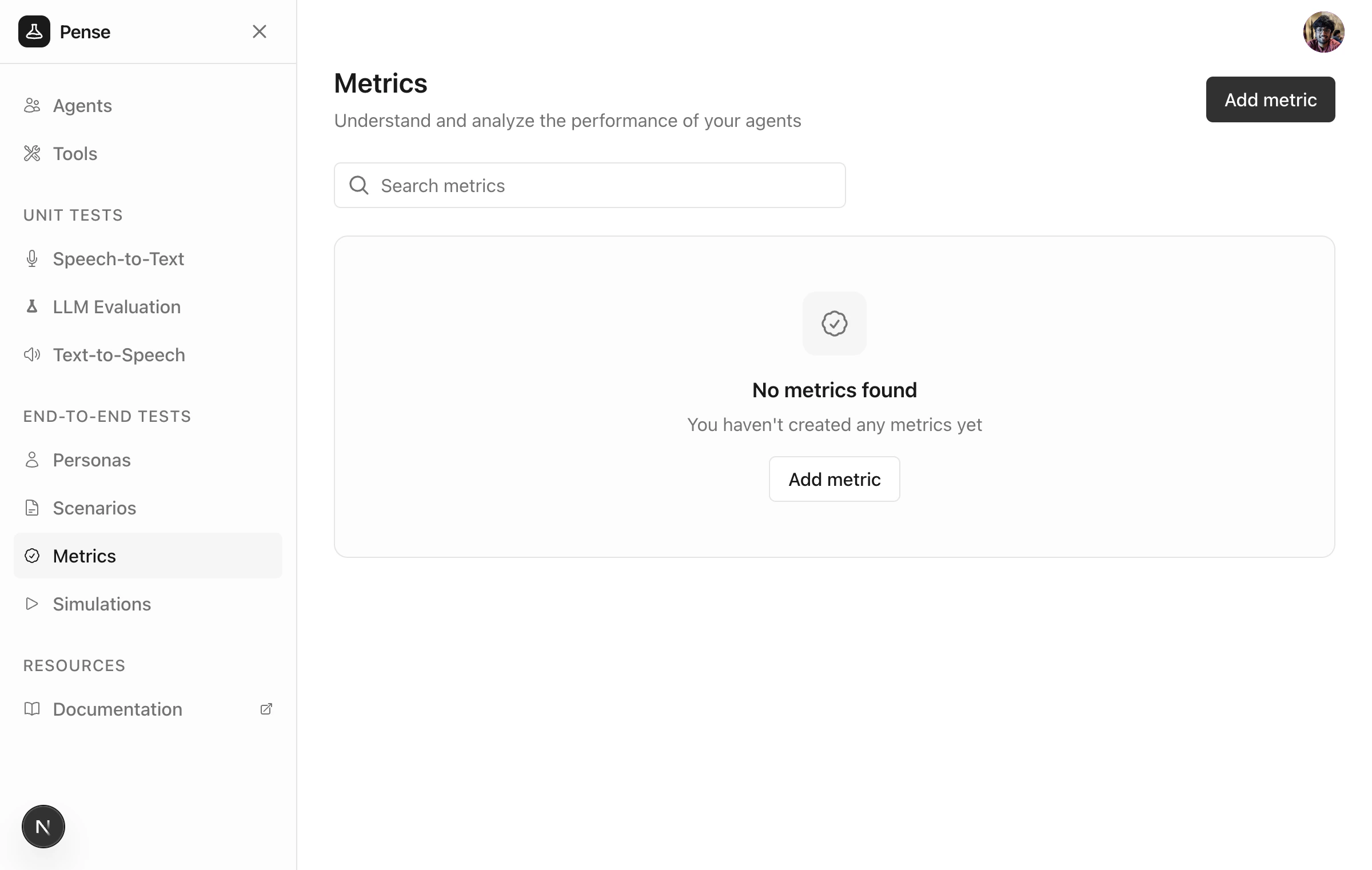 Define how to evaluate whether the agent performed well.
Learn more about metrics in [Core Concepts - Metrics](/docs/core-concepts/metrics)
Define how to evaluate whether the agent performed well.
Learn more about metrics in [Core Concepts - Metrics](/docs/core-concepts/metrics)
 ## Create a simulation
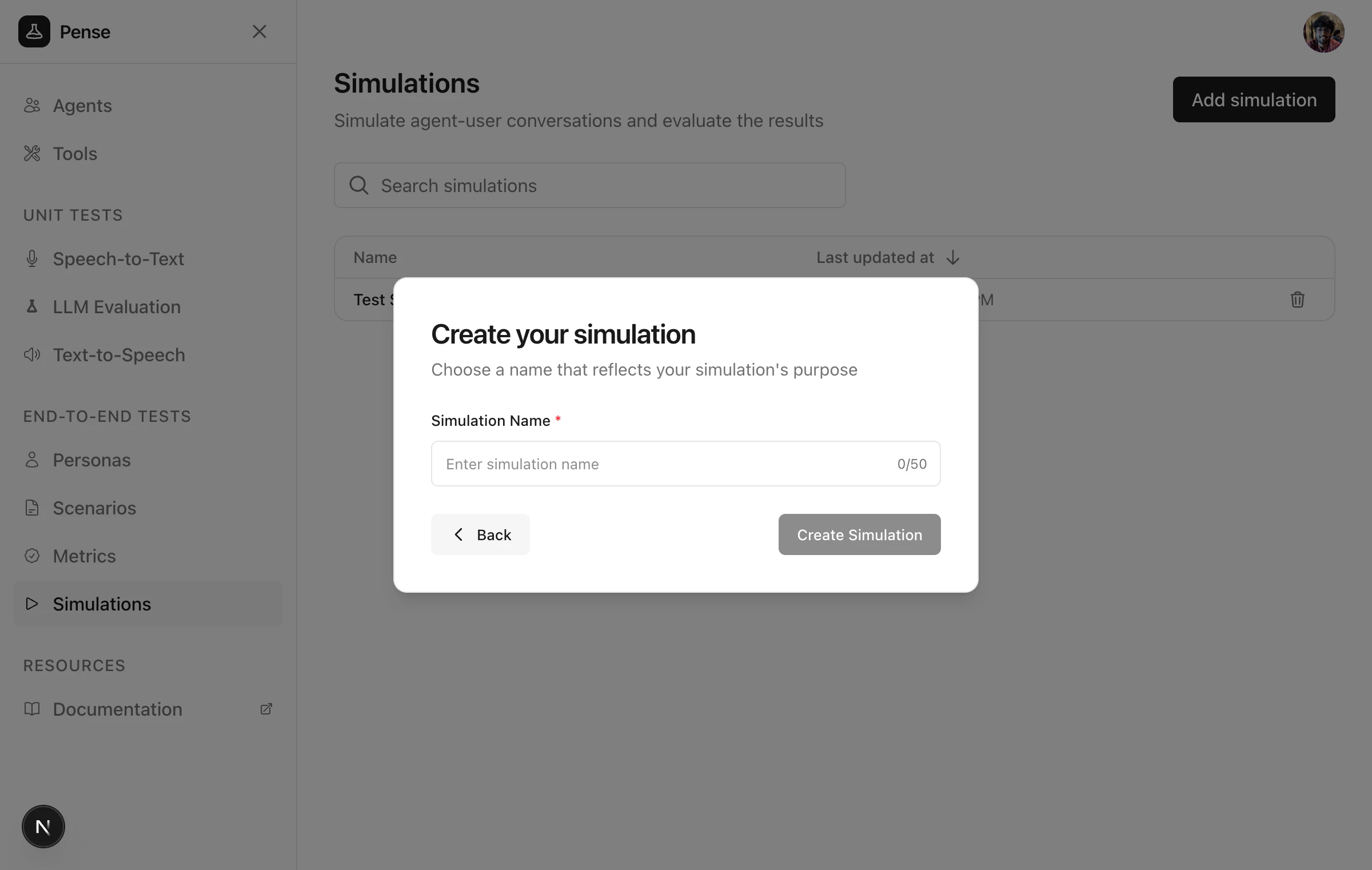
Click **Simulations** → **Add simulation** and enter a name.
## Create a simulation
Click **Simulations** → **Add simulation** and enter a name.
 Select the agent, personas, scenarios, and metrics for your simulation.
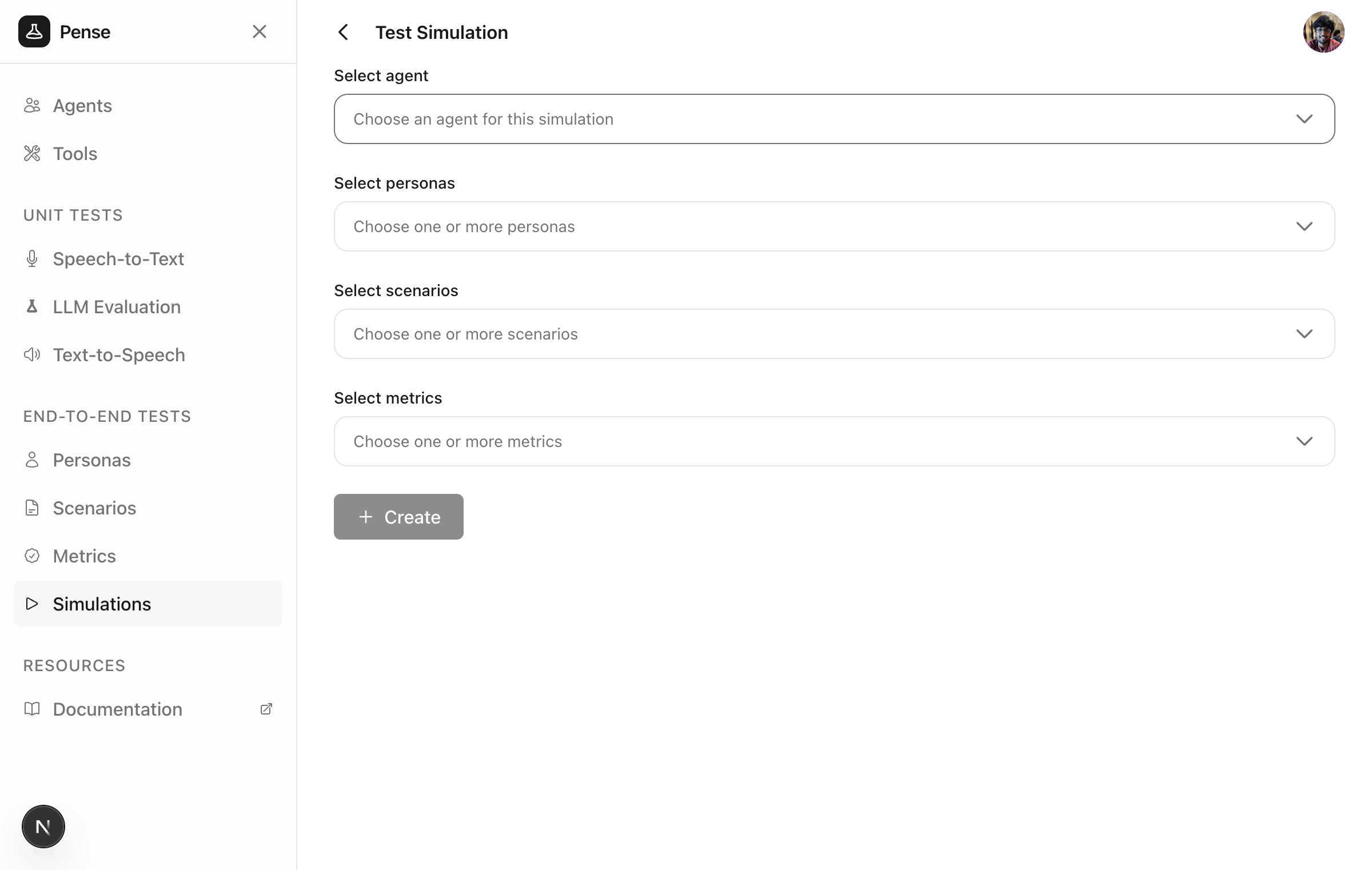 Click **Create** after filling in the details to save the simulation configuration. This creates the simulation but does not run it yet.
## Run the simulation
After creating, you'll see a **Launch** button. Click it to start a simulation run and choose between:
* **Text simulation** — text-only conversations (faster)
* **Voice simulation** — full STT/TTS pipeline with latency metrics
Click **Create** after filling in the details to save the simulation configuration. This creates the simulation but does not run it yet.
## Run the simulation
After creating, you'll see a **Launch** button. Click it to start a simulation run and choose between:
* **Text simulation** — text-only conversations (faster)
* **Voice simulation** — full STT/TTS pipeline with latency metrics
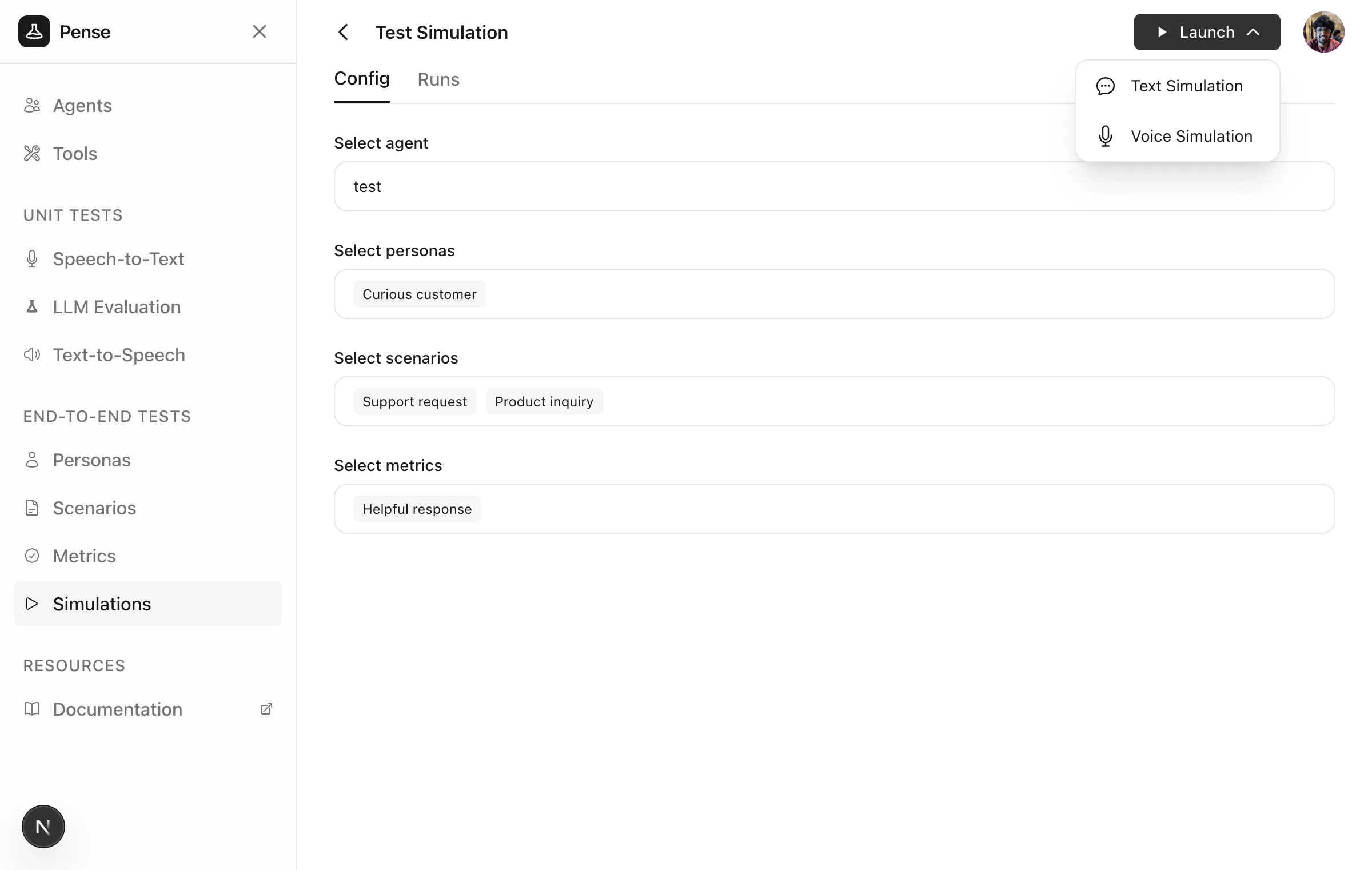 Each run creates one simulated conversation for each persona × scenario combination.
### Text simulation
After launching a text simulation, the run page opens showing each conversation streaming in real-time.
Each run creates one simulated conversation for each persona × scenario combination.
### Text simulation
After launching a text simulation, the run page opens showing each conversation streaming in real-time.
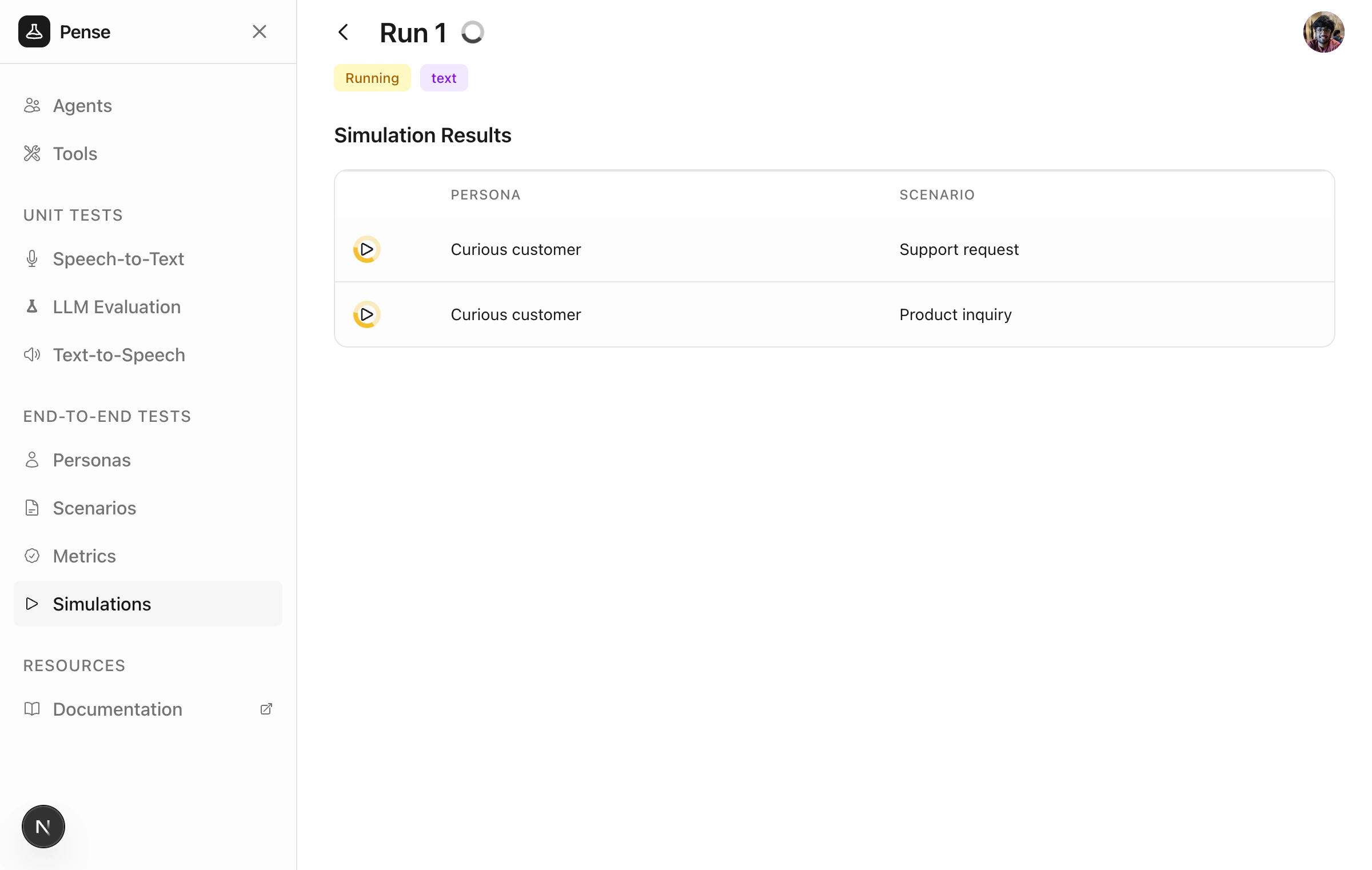 Once conversations complete, results show the metric evaluations for each row.
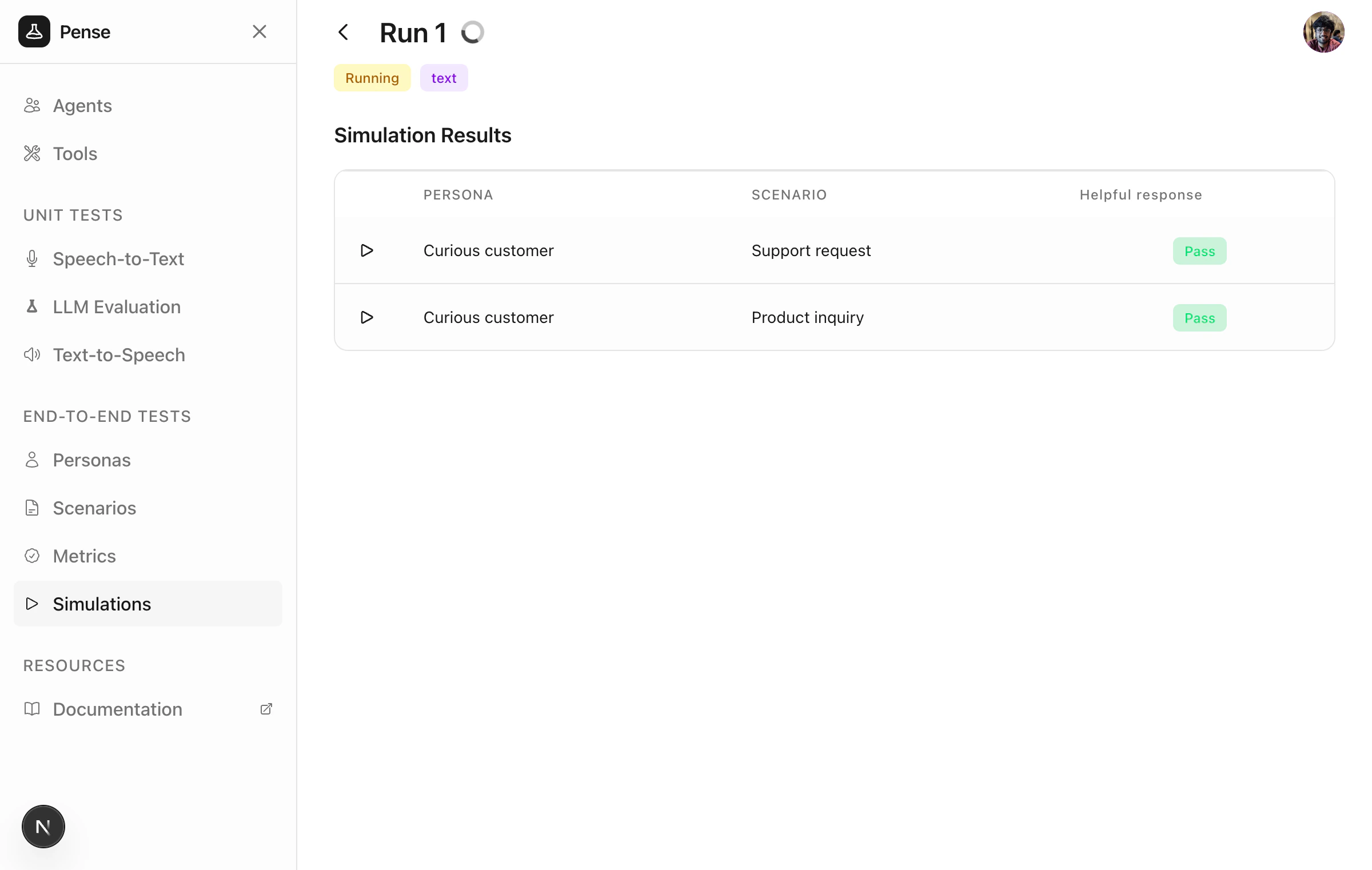 Click any row to view the full transcript.
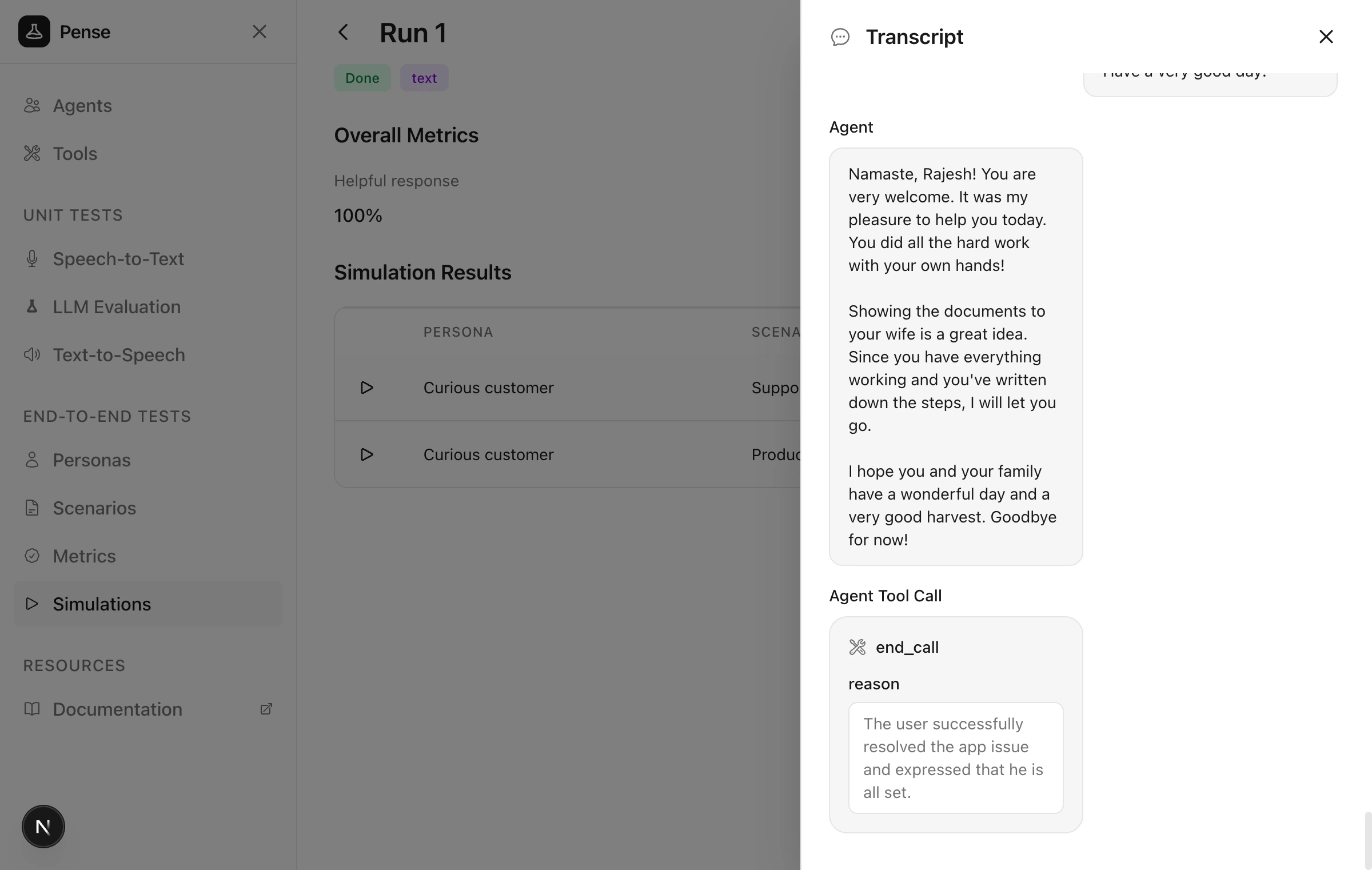 The **Overall metrics** show the aggregated values for each metric across all conversations.
### Voice simulation
[Agent connections](/docs/core-concepts/agent-connections) support **text
simulations** only. For **voice simulations** (with STT/TTS latency metrics),
use an agent [built within Calibrate](/docs/core-concepts/agents) with STT and TTS
providers configured.
Voice simulations use the full STT/TTS pipeline for more realistic testing. After launching, conversations stream in real-time like text simulations.
The **Overall metrics** show the aggregated values for each metric across all conversations.
### Voice simulation
[Agent connections](/docs/core-concepts/agent-connections) support **text
simulations** only. For **voice simulations** (with STT/TTS latency metrics),
use an agent [built within Calibrate](/docs/core-concepts/agents) with STT and TTS
providers configured.
Voice simulations use the full STT/TTS pipeline for more realistic testing. After launching, conversations stream in real-time like text simulations.
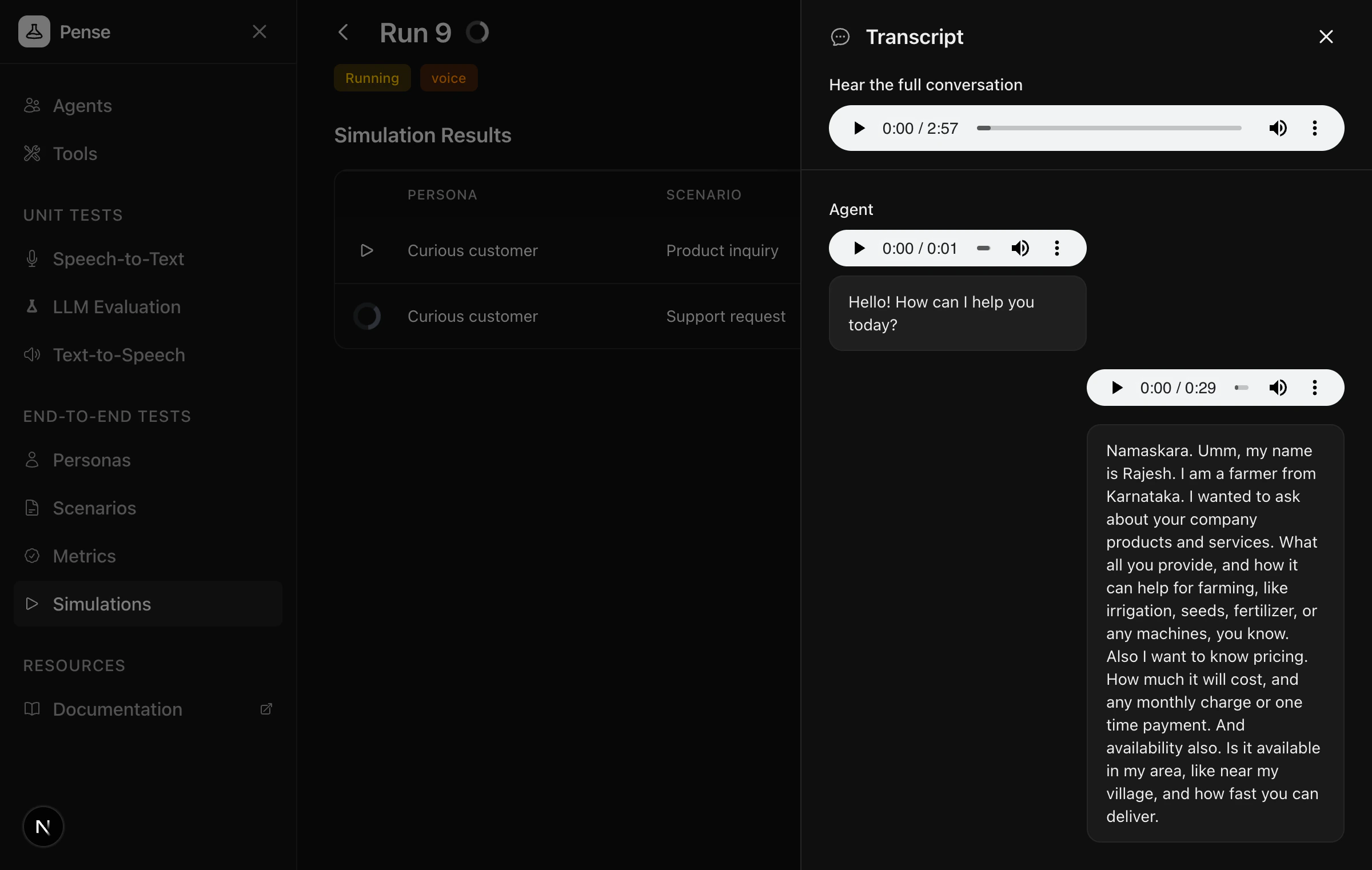
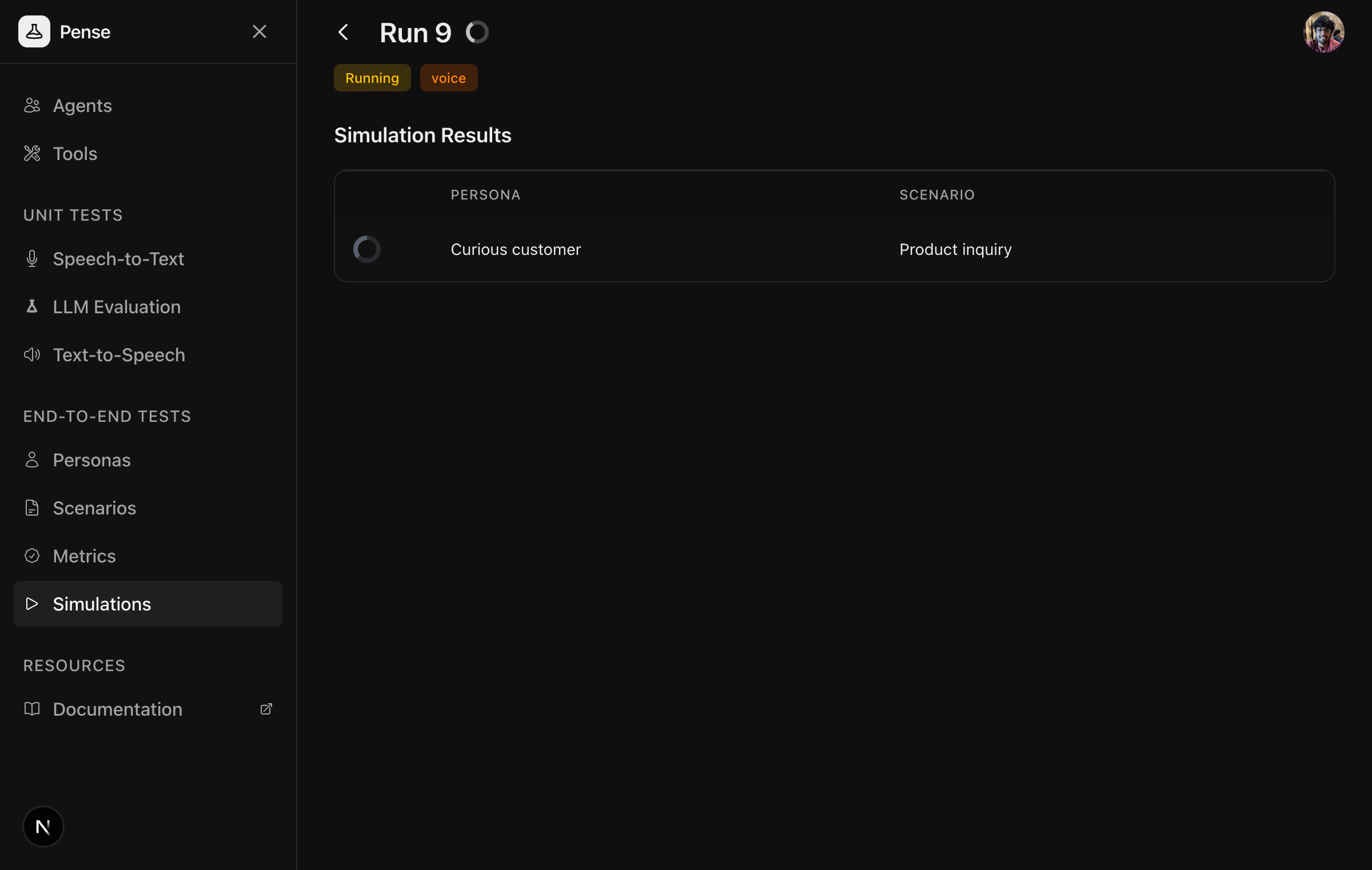 Click any row to view the transcript with audio playback for each turn and the full conversation.
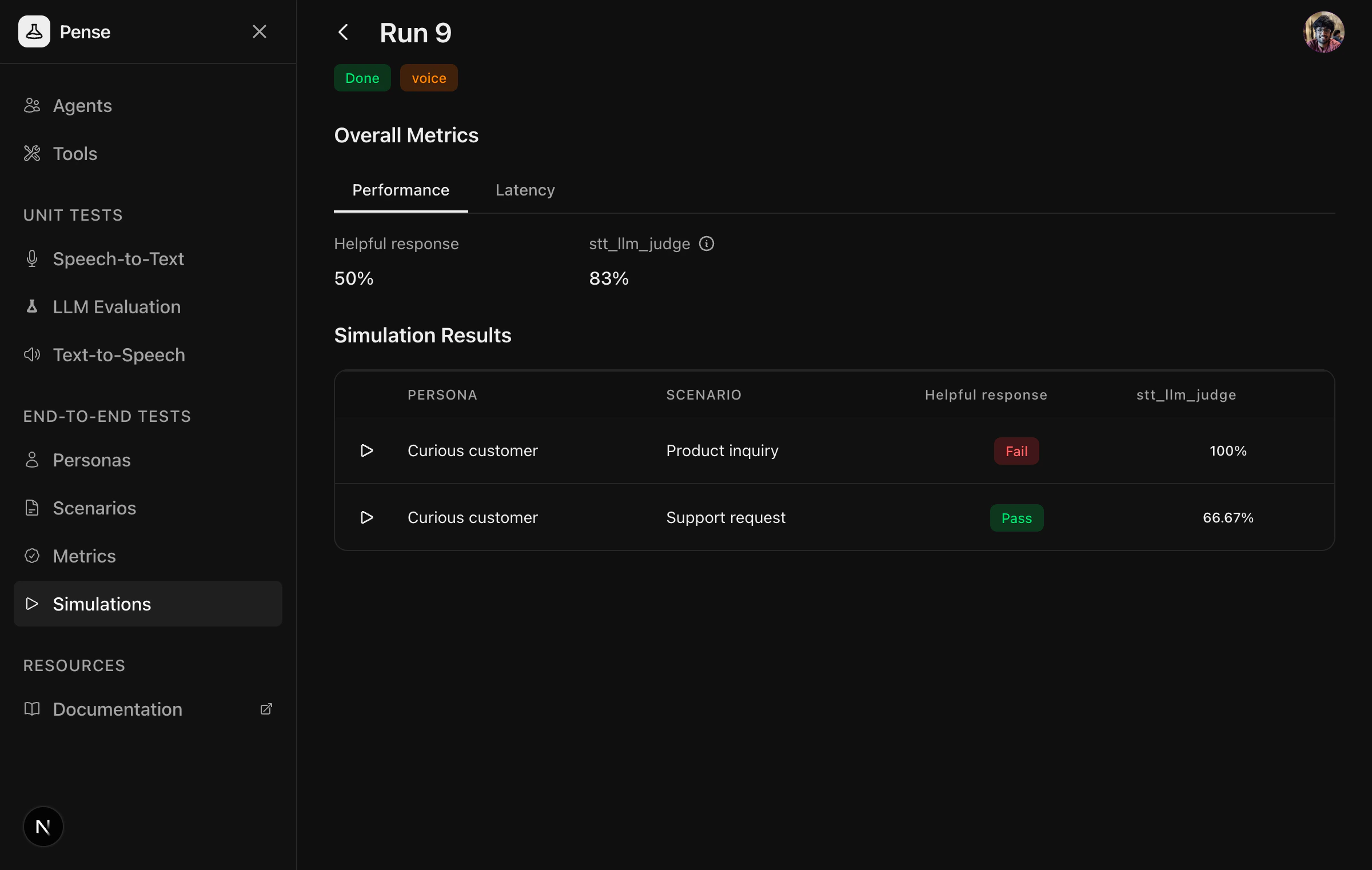
 Once complete, voice simulations show results with the **Performance** tab displaying aggregated evaluation metrics across all conversations.
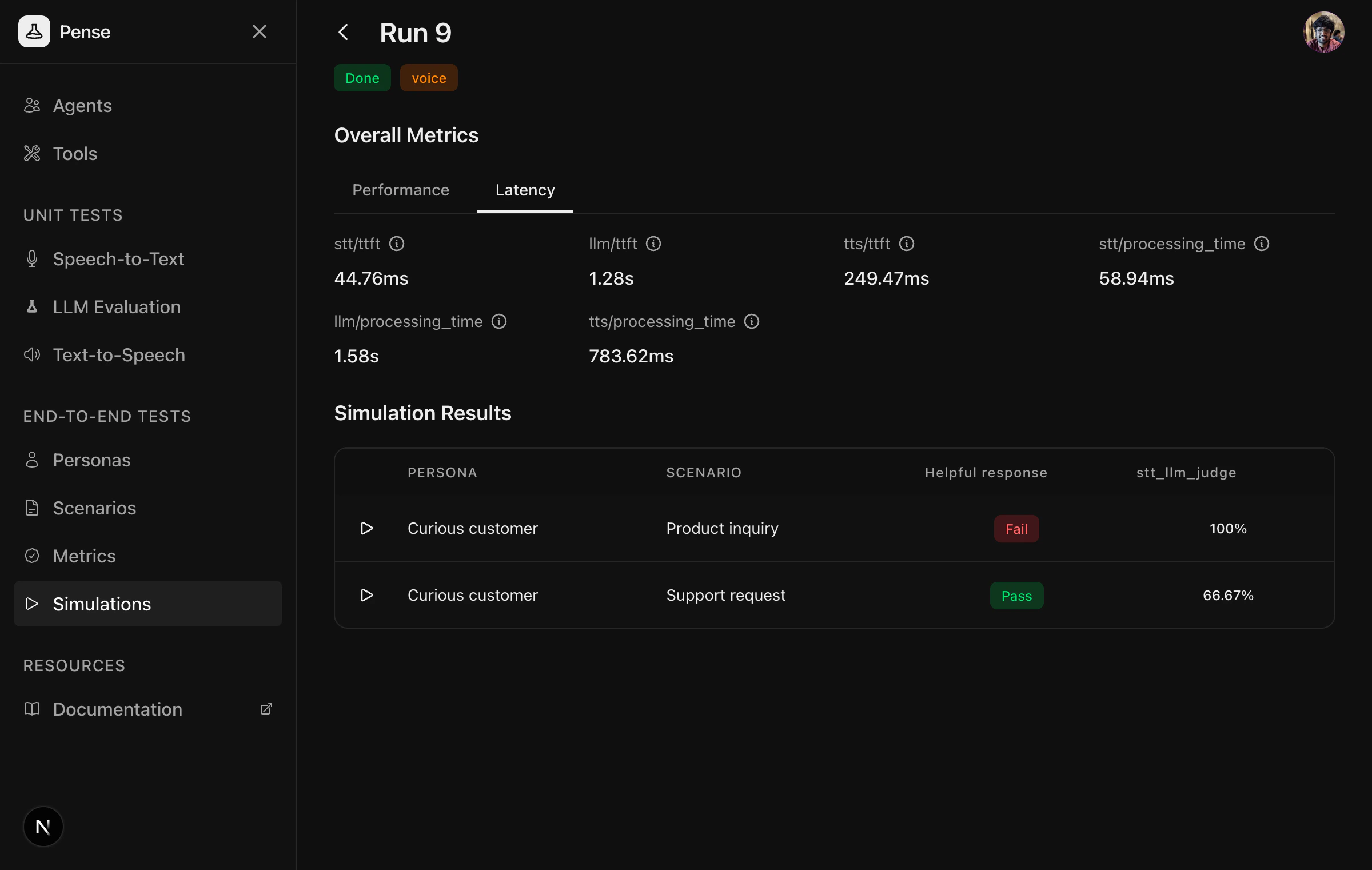
 Switch to the **Latency** tab to view detailed timing metrics for each component:
* **stt/ttft** and **stt/processing\_time** — Speech-to-Text latency
* **llm/ttft** and **llm/processing\_time** — LLM response latency
* **tts/ttft** and **tts/processing\_time** — Text-to-Speech latency
Switch to the **Latency** tab to view detailed timing metrics for each component:
* **stt/ttft** and **stt/processing\_time** — Speech-to-Text latency
* **llm/ttft** and **llm/processing\_time** — LLM response latency
* **tts/ttft** and **tts/processing\_time** — Text-to-Speech latency
 Voice simulations take longer than text simulations due to the full audio
pipeline, but provide more realistic testing of your agent's voice experience.
## Sharing simulation results publicly
Once a simulation run completes, you can share the results publicly. Open a completed run and click the **Share** button.
Voice simulations take longer than text simulations due to the full audio
pipeline, but provide more realistic testing of your agent's voice experience.
## Sharing simulation results publicly
Once a simulation run completes, you can share the results publicly. Open a completed run and click the **Share** button.
 This toggles the run to **Public** and generates a shareable link.
Anyone with the link can view the overall metrics, per-conversation results, and transcripts without needing a Calibrate account.
This toggles the run to **Public** and generates a shareable link.
Anyone with the link can view the overall metrics, per-conversation results, and transcripts without needing a Calibrate account.
 Click the **Public** button again to make the run private.
## Next steps
Best practices for creating realistic personas
Best practices for creating effective scenarios
Click the **Public** button again to make the run private.
## Next steps
Best practices for creating realistic personas
Best practices for creating effective scenarios