> ## Documentation Index
> Fetch the complete documentation index at: https://penseapp.vercel.app/docs/llms.txt
> Use this file to discover all available pages before exploring further.
# Speech to Text
> Learn how to evaluate and compare STT providers with your data
[Calibrate](https://calibrate.artpark.ai) lets you evaluate multiple STT providers simultaneously using your own dataset. This guide will walk you through creating an evaluation, managing reusable datasets, and sharing your results.
## Start a new evaluation
From the sidebar, click on **Speech-to-Text** to view all your evaluations and datasets. Click the **New evaluation** button to create a new evaluation.
## Add your dataset
On the **Dataset** tab, choose how to provide your audio samples:
Create a new dataset inline. Give it a name, then add samples in one of two ways:
1. **Add samples inline** — Click **Upload .wav** to attach an audio file and type the reference transcription for each row. Click **+ Add another sample** to add more.
2. **Bulk upload via ZIP** — Upload a ZIP file with the following structure:
```
your_dataset.zip
|-- audios/
| |-- sample_1.wav
| |-- sample_2.wav
| |-- sample_3.wav
|-- data.csv
```
The `data.csv` should have two columns:
| audio\_file | text |
| ------------- | ------------------------------------------------- |
| sample\_1.wav | This is the reference transcription for sample 1. |
| sample\_2.wav | This is the reference transcription for sample 2. |
| sample\_3.wav | This is the reference transcription for sample 3. |
Click **Download sample ZIP** to get a template with the correct structure.
Your dataset is automatically saved so you can reuse it in future evaluations.
If you've already created a dataset, switch to **Use existing dataset** to pick from your saved datasets.
You can also create and manage datasets independently from the **Datasets**
tab. See [Datasets](/docs/core-concepts/speech-to-text#datasets) to learn how to
create reusable datasets and run evaluations directly from them.
## Configure settings
Switch to the **Settings** tab to select the language and the providers you want to compare:
Select a **Language** from the dropdown and check the providers you want to evaluate. Each provider shows the model it uses.
## Run evaluation
Click the **Evaluate** button at the top to start the evaluation. You will be redirected to the results page where you can monitor progress in real-time.
## View results
### Outputs
The **Outputs** tab shows per-provider results. Select a provider from the list on the left to see its overall metrics and per-sample results.
Each sample row includes:
* **Audio** — An inline audio player to listen to the original recording
* **Ground Truth** — The reference transcription you provided
* **Prediction** — What the STT provider transcribed
* **WER** — Word Error Rate for that sample
* **Similarity** — String similarity score
* **LLM Judge** — Pass/Fail based on semantic evaluation
### Leaderboard
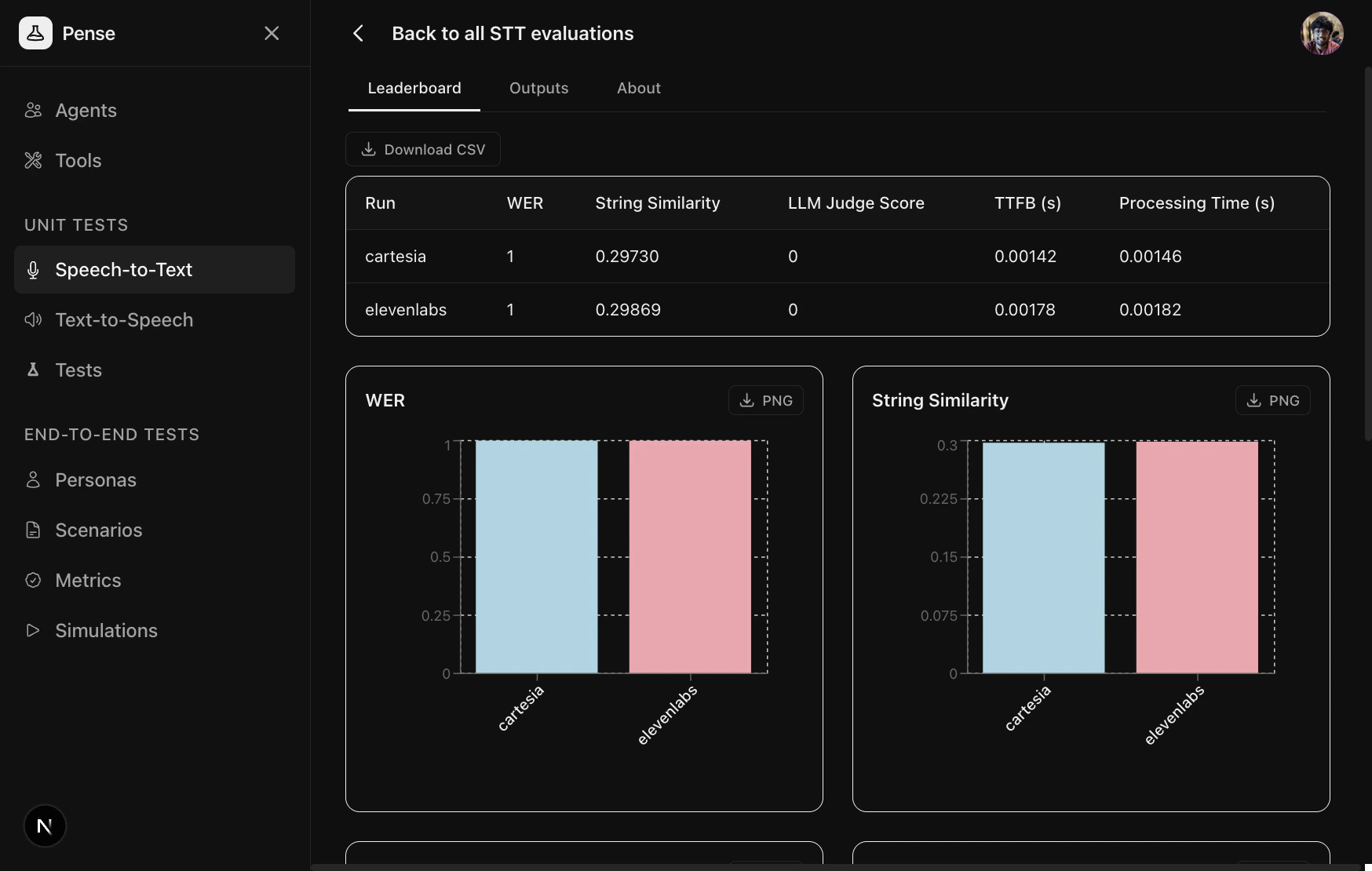
The **Leaderboard** tab shows a side-by-side comparison across all providers with aggregated metrics and bar charts.
## Sharing results publicly
Once your evaluation completes, you can make the results publicly accessible by clicking the **Share** button on the results page.
This toggles the evaluation to **Public** and generates a shareable link. Anyone with the link can view the leaderboard and outputs without needing a Calibrate account.
Click the **Public** button again to make the evaluation private.
## Next steps
Learn about STT metrics — WER, String Similarity, and LLM Judge
Save and reuse evaluation data across multiple evaluations
Find the best LLM for your agent
 Your dataset is automatically saved so you can reuse it in future evaluations.

 ## Add your dataset
On the **Dataset** tab, choose how to provide your audio samples:
## Add your dataset
On the **Dataset** tab, choose how to provide your audio samples:

 Select a **Language** from the dropdown and check the providers you want to evaluate. Each provider shows the model it uses.
## Run evaluation
Click the **Evaluate** button at the top to start the evaluation. You will be redirected to the results page where you can monitor progress in real-time.
## View results
### Outputs
The **Outputs** tab shows per-provider results. Select a provider from the list on the left to see its overall metrics and per-sample results.
Select a **Language** from the dropdown and check the providers you want to evaluate. Each provider shows the model it uses.
## Run evaluation
Click the **Evaluate** button at the top to start the evaluation. You will be redirected to the results page where you can monitor progress in real-time.
## View results
### Outputs
The **Outputs** tab shows per-provider results. Select a provider from the list on the left to see its overall metrics and per-sample results.
 Each sample row includes:
* **Audio** — An inline audio player to listen to the original recording
* **Ground Truth** — The reference transcription you provided
* **Prediction** — What the STT provider transcribed
* **WER** — Word Error Rate for that sample
* **Similarity** — String similarity score
* **LLM Judge** — Pass/Fail based on semantic evaluation
### Leaderboard
The **Leaderboard** tab shows a side-by-side comparison across all providers with aggregated metrics and bar charts.
Each sample row includes:
* **Audio** — An inline audio player to listen to the original recording
* **Ground Truth** — The reference transcription you provided
* **Prediction** — What the STT provider transcribed
* **WER** — Word Error Rate for that sample
* **Similarity** — String similarity score
* **LLM Judge** — Pass/Fail based on semantic evaluation
### Leaderboard
The **Leaderboard** tab shows a side-by-side comparison across all providers with aggregated metrics and bar charts.
 ## Sharing results publicly
Once your evaluation completes, you can make the results publicly accessible by clicking the **Share** button on the results page.
## Sharing results publicly
Once your evaluation completes, you can make the results publicly accessible by clicking the **Share** button on the results page.
 This toggles the evaluation to **Public** and generates a shareable link. Anyone with the link can view the leaderboard and outputs without needing a Calibrate account.
 Click the **Public** button again to make the evaluation private.
## Next steps
Click the **Public** button again to make the evaluation private.
## Next steps