

Create an agent
From the sidebar, click Agents → New agent. You have two options for setting up your agent:
Build your agent in Calibrate
Build your agent in Calibrate
Configure the LLM/STT/TTS models, set instructions, and define the tools your agent can use — all within Calibrate.See our Core Concepts: Agents guide for the full setup.
Connect your existing agent
Connect your existing agent
If you already have a deployed agent, you can connect it to Calibrate via its HTTP endpoint. Calibrate will call your agent directly to run simulations.See our Core Concepts: Agent Connections guide for the full setup.
Agent connections support text simulations only. For voice simulations (with STT/TTS latency metrics), use an agent built within Calibrate with STT and TTS providers configured.
Create personas
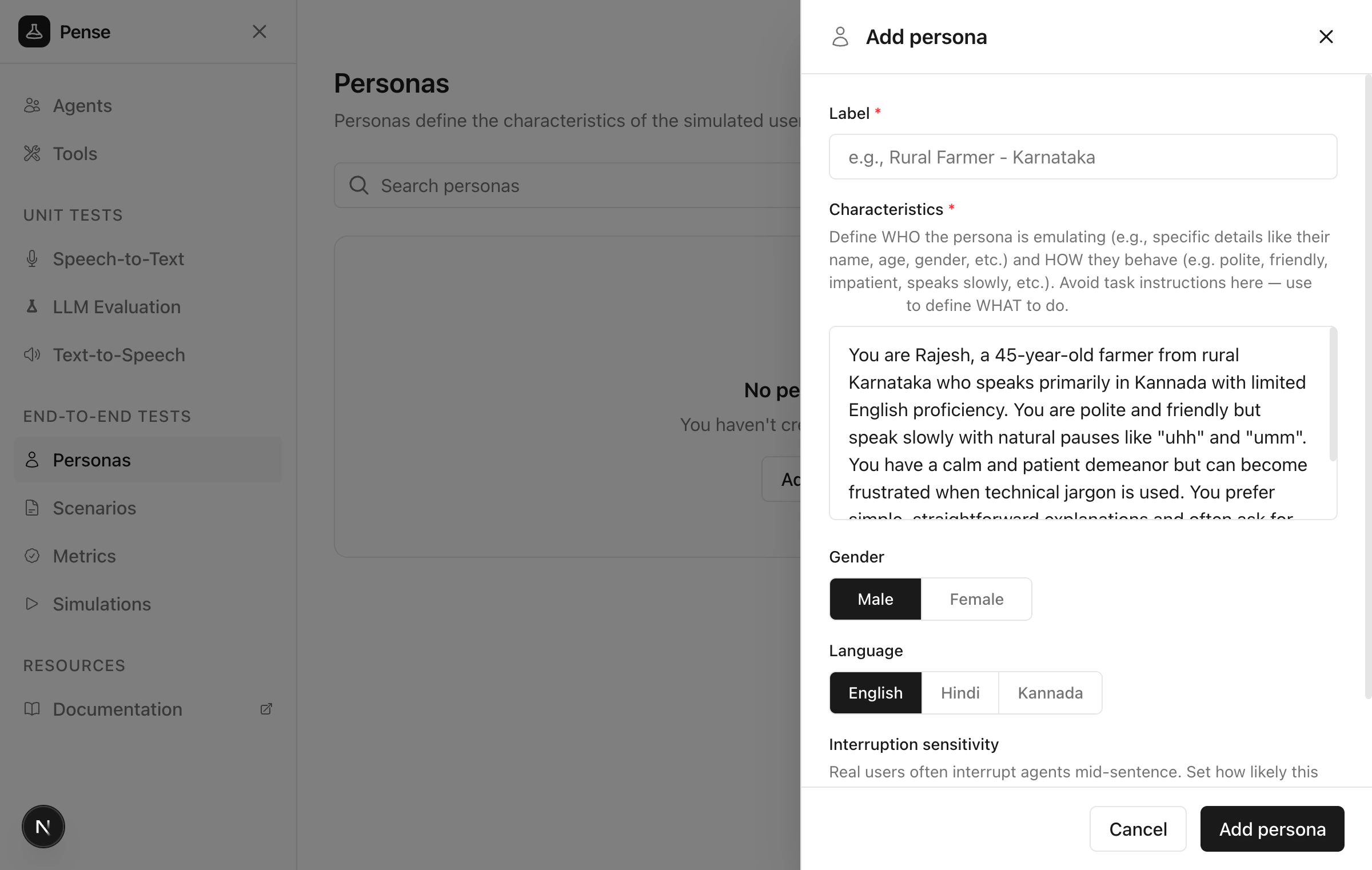
From the sidebar under End-to-End Tests, click Personas → Add persona.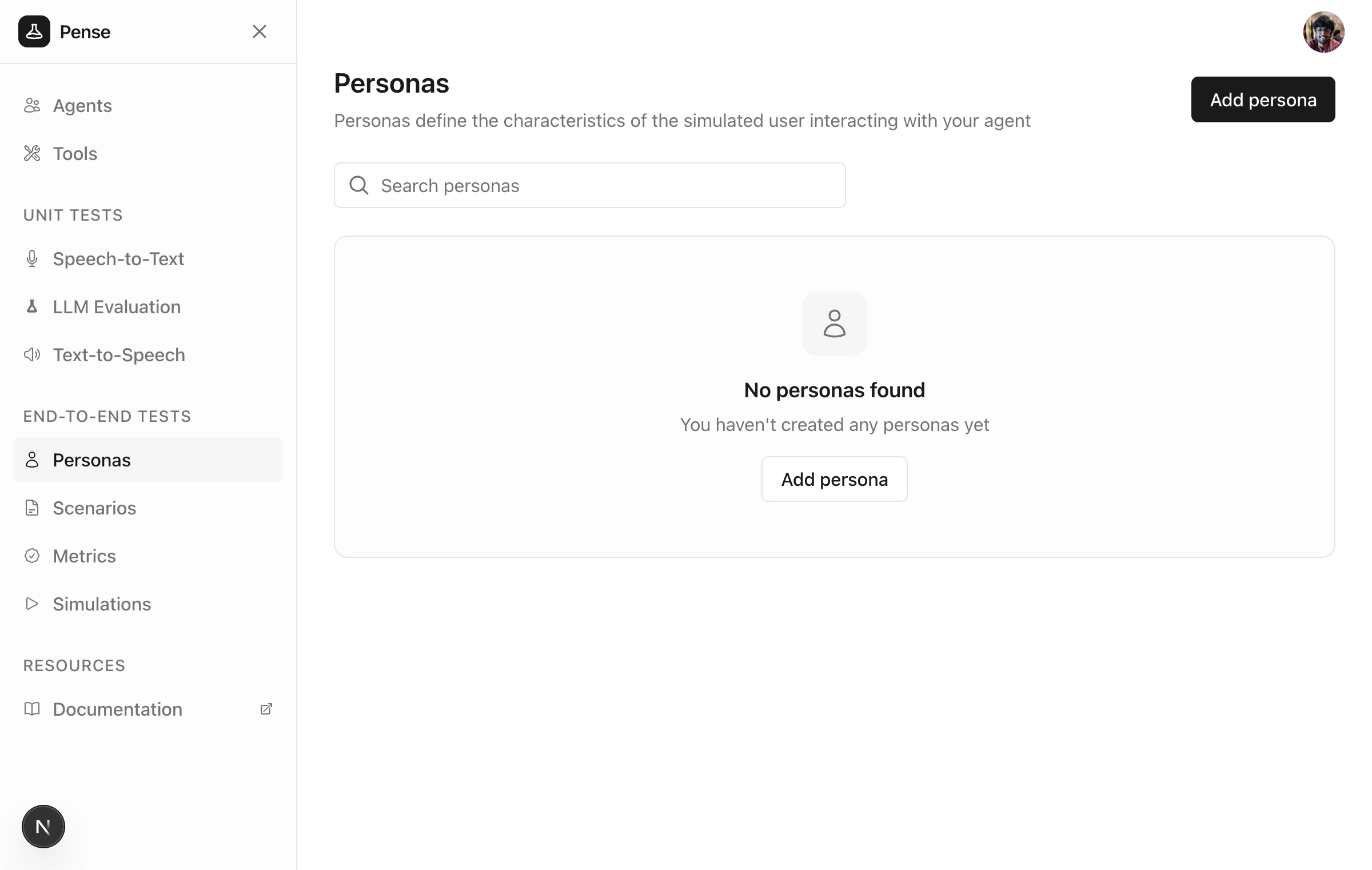
WHO the simulated user is - their personality, speaking style, and behavior.
Create scenarios
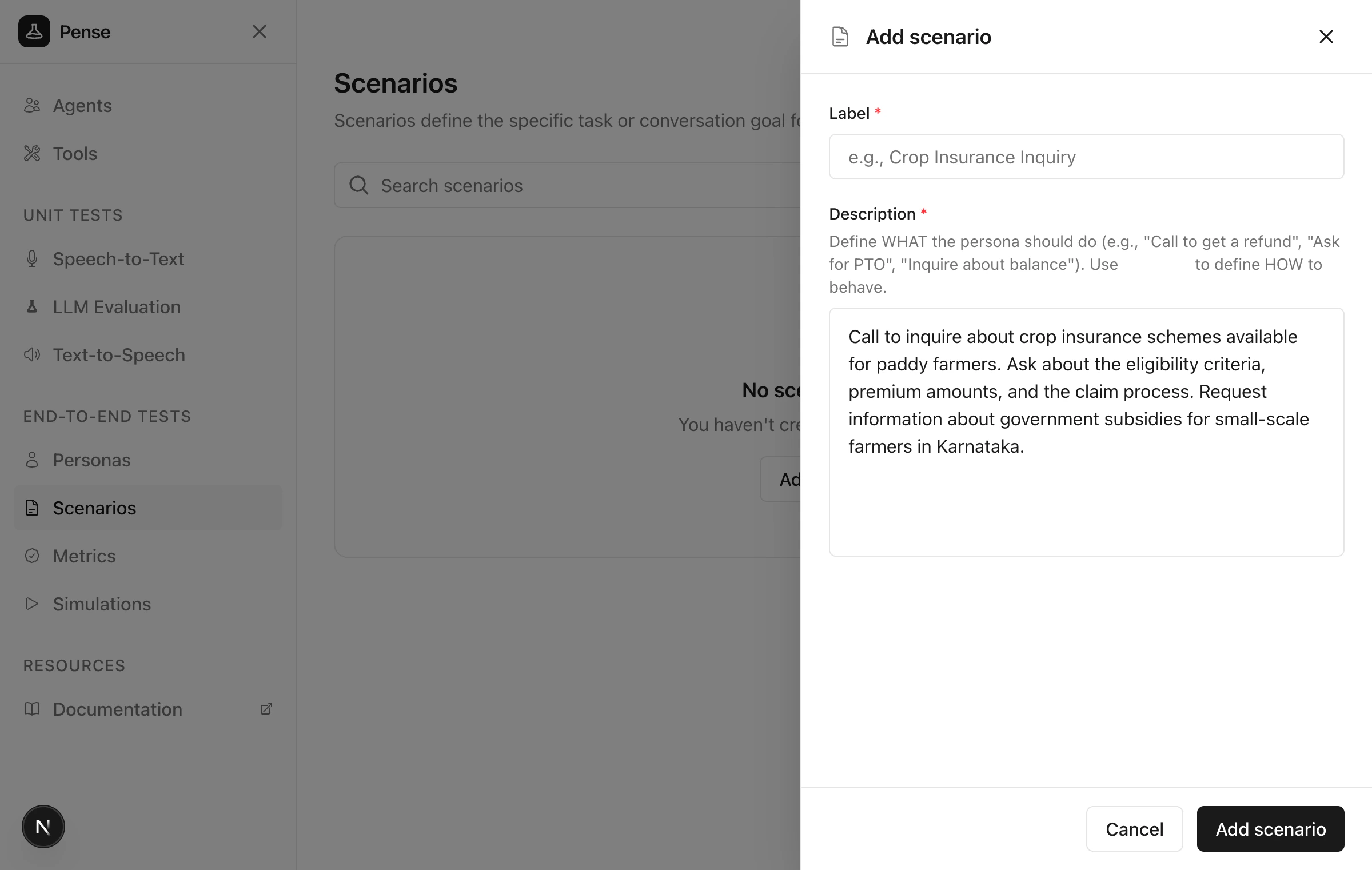
Click Scenarios → Add scenario.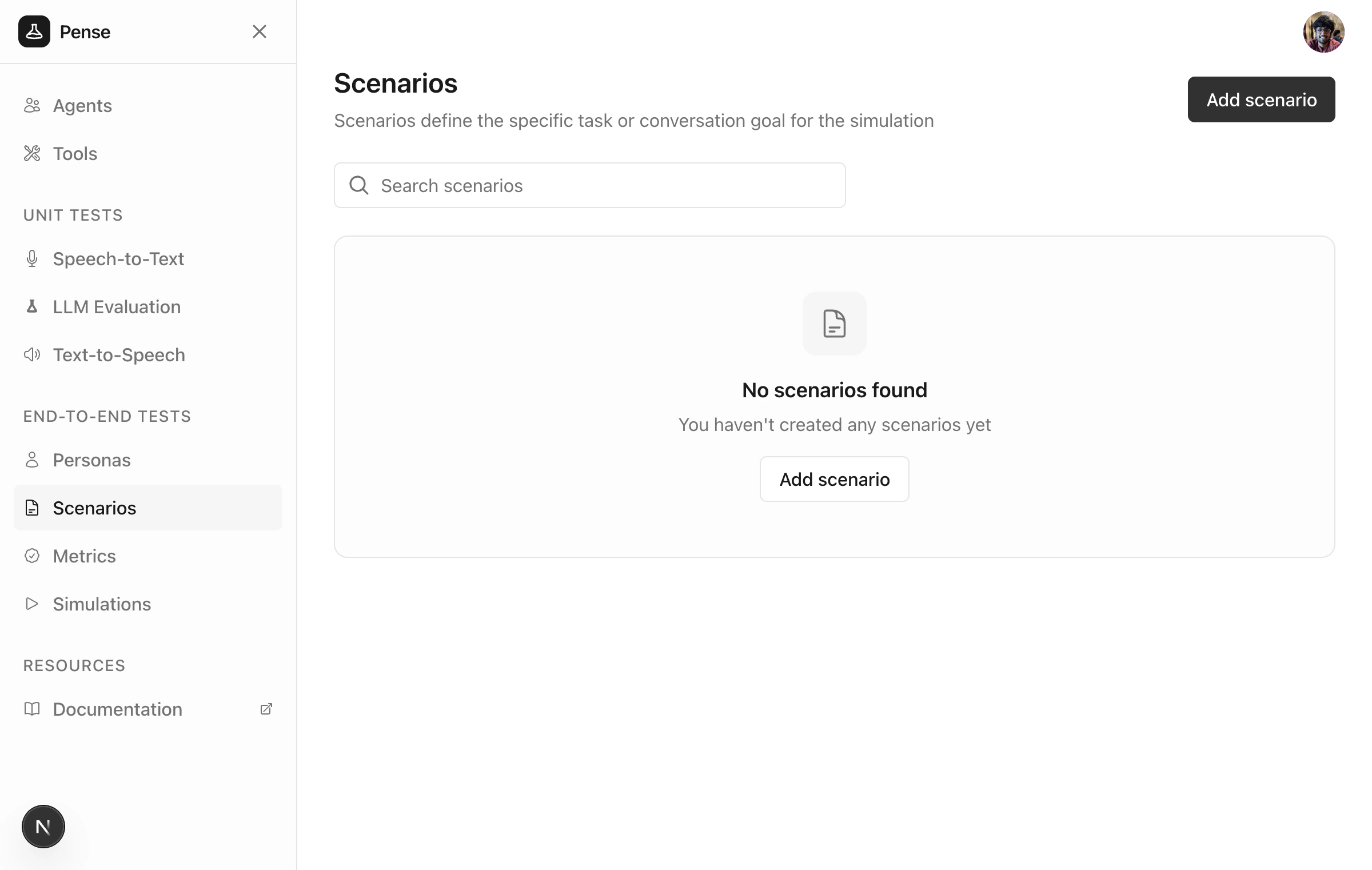
WHAT the simulated user should accomplish during the conversation.
Create metrics
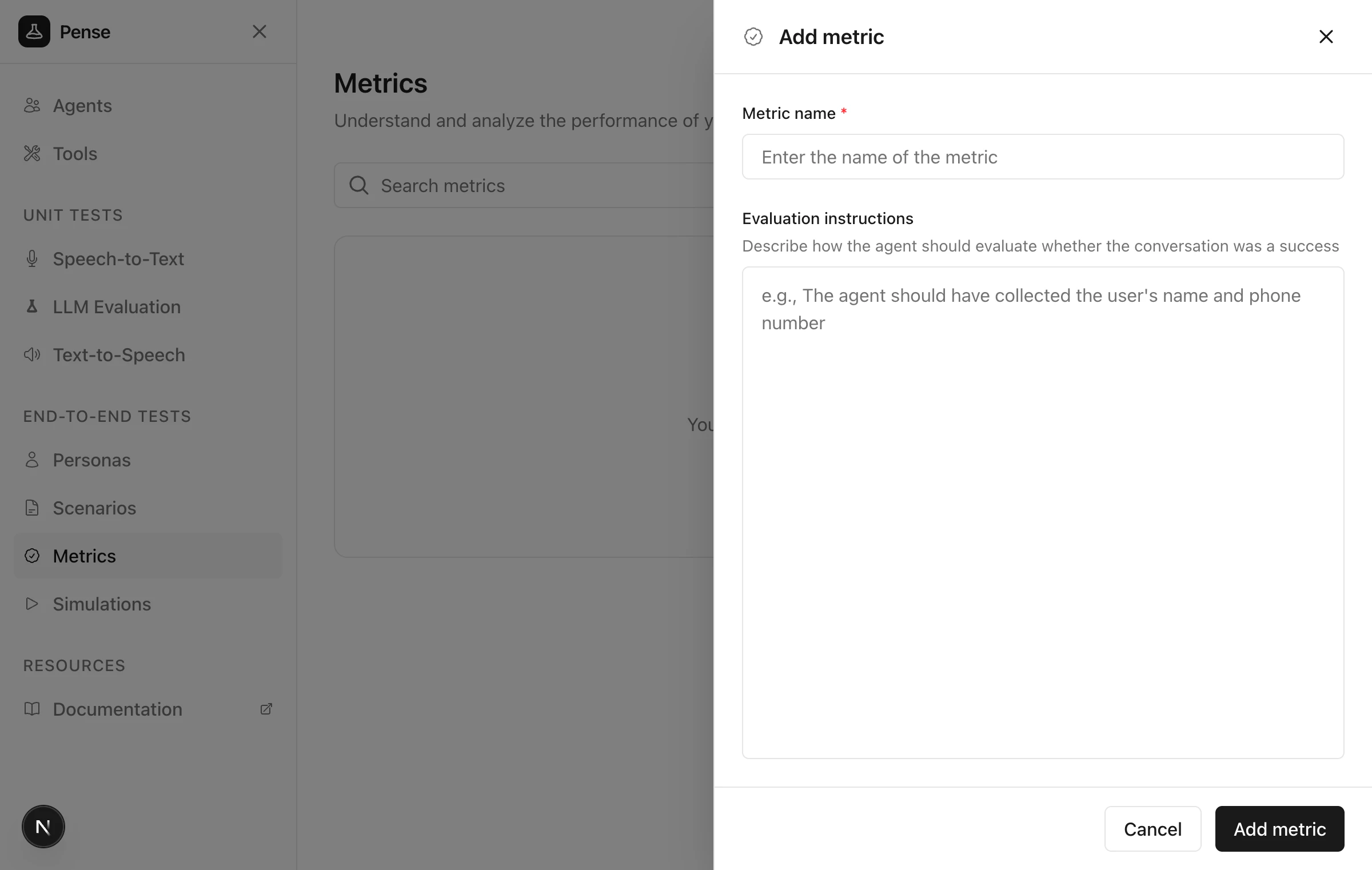
Click Metrics → Add metric.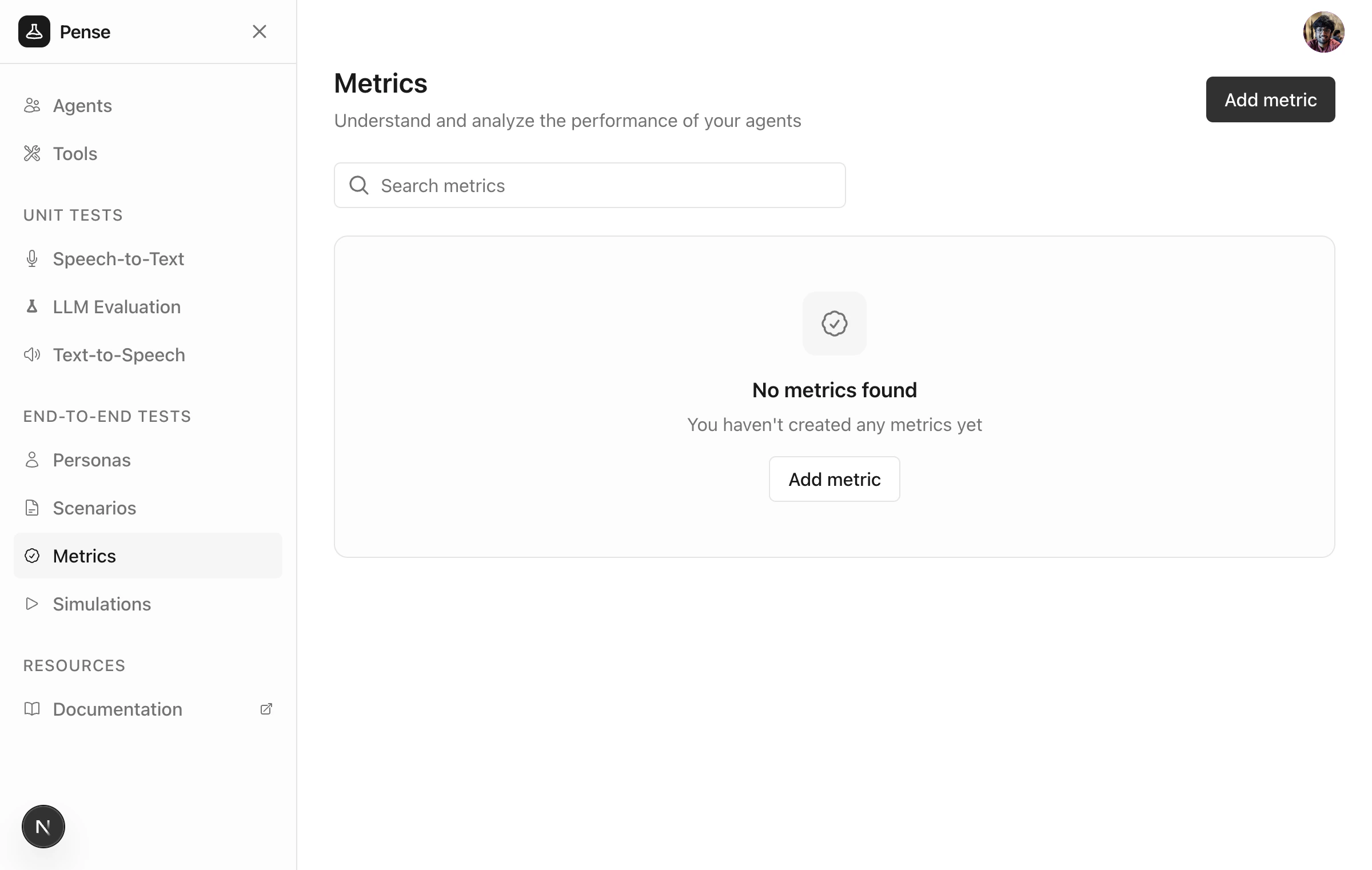
Create a simulation
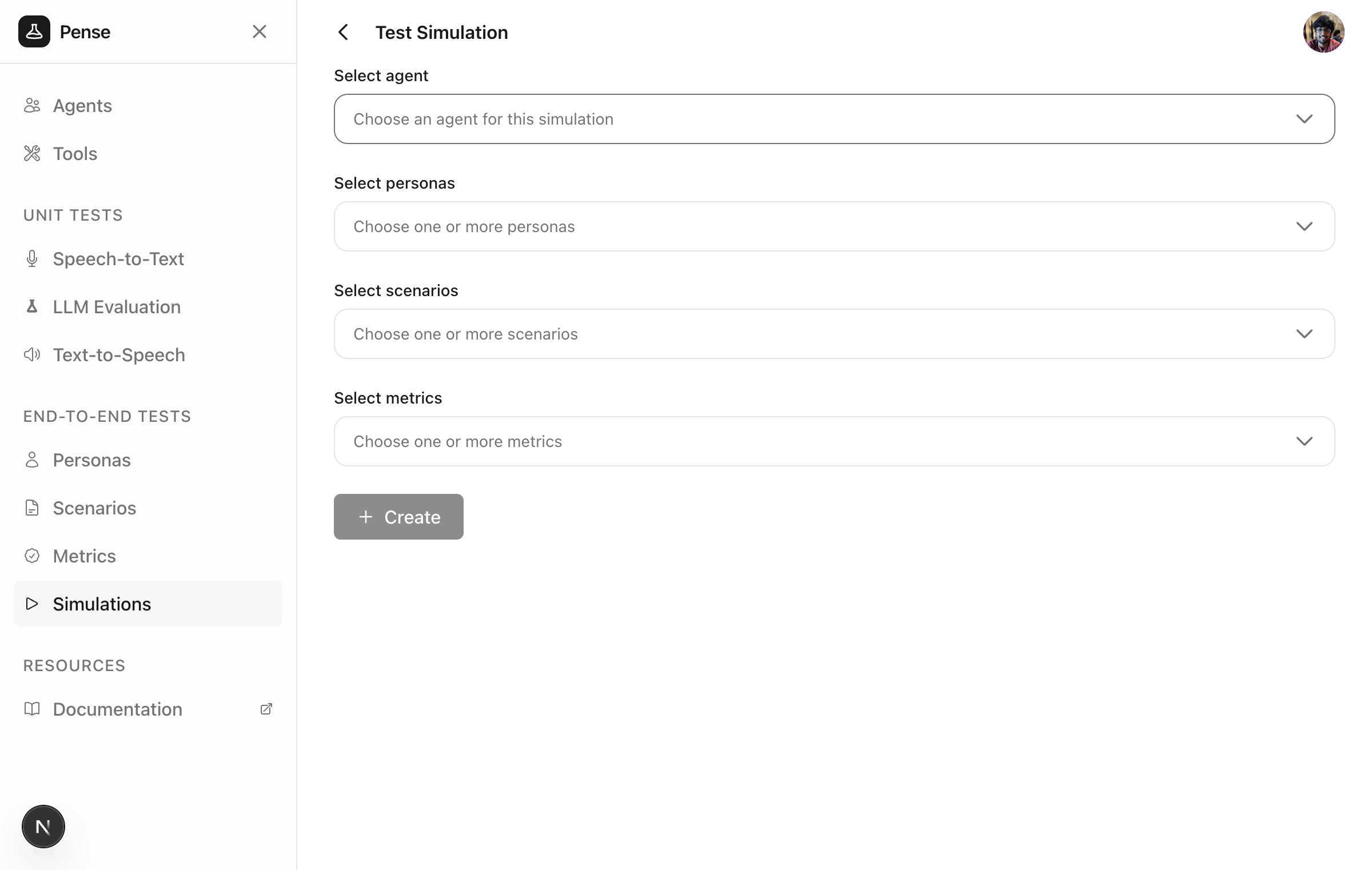
Click Simulations → Add simulation and enter a name.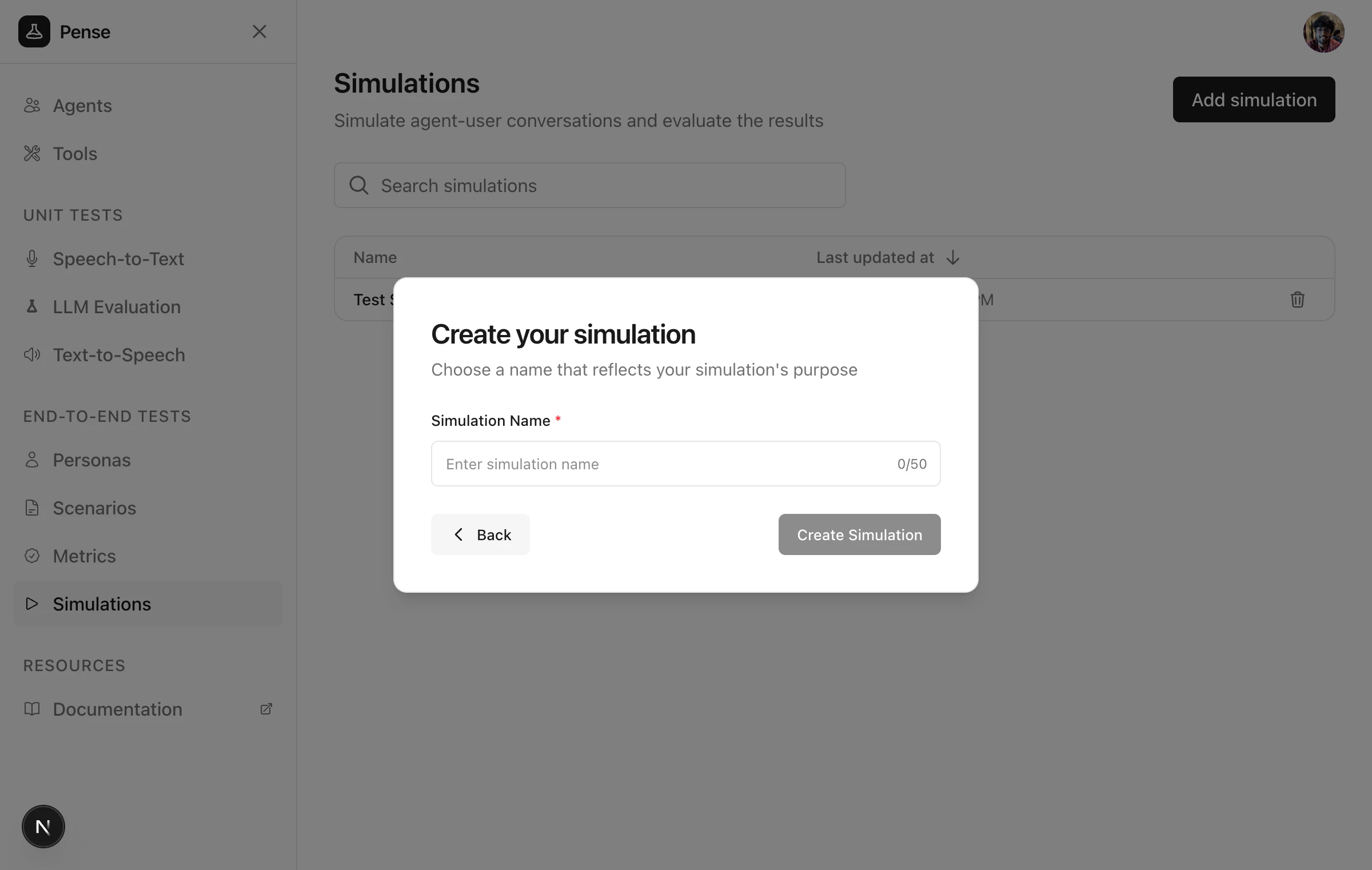
Run the simulation
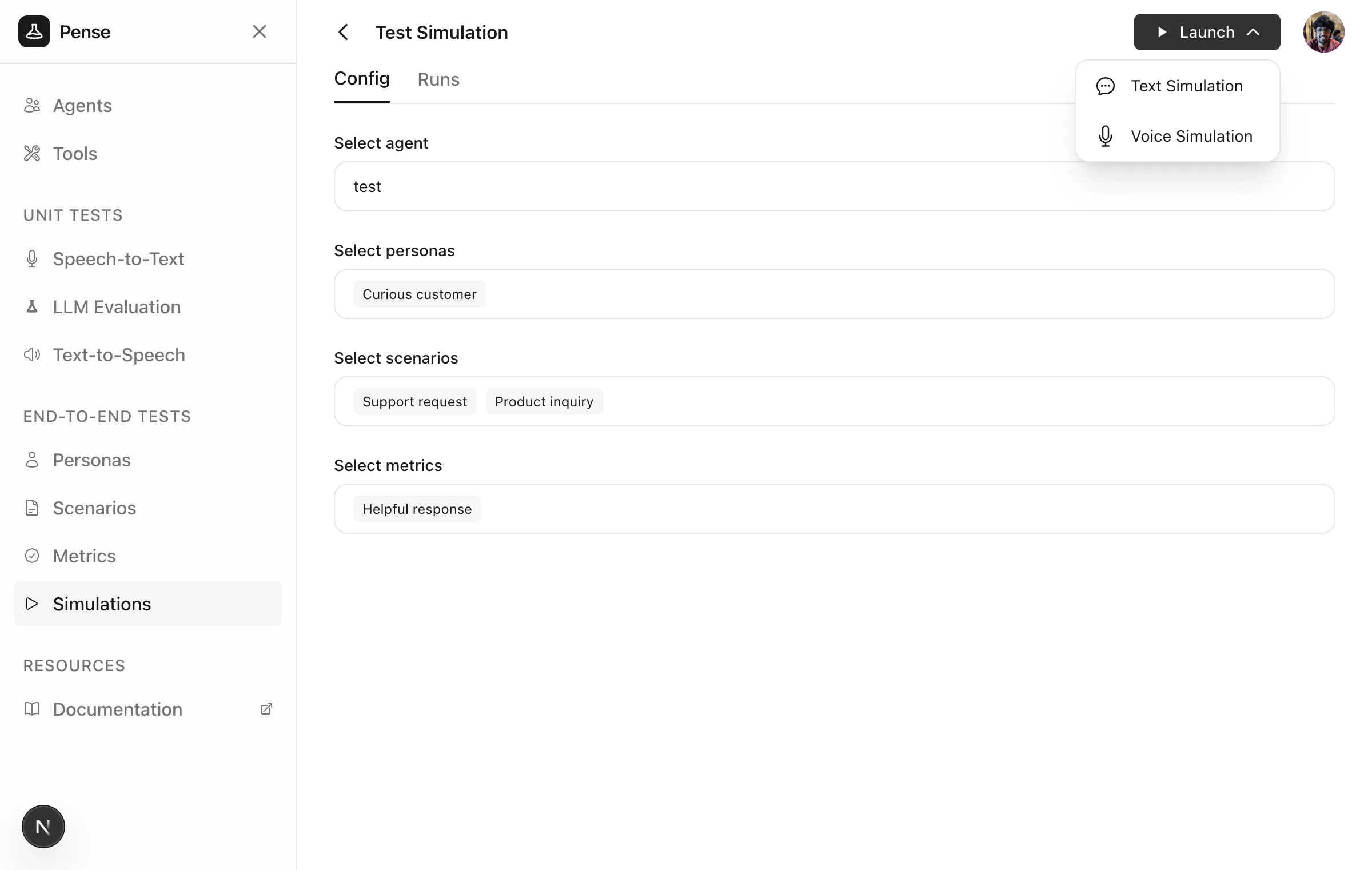
After creating, you’ll see a Launch button. Click it to start a simulation run and choose between:- Text simulation — text-only conversations (faster)
- Voice simulation — full STT/TTS pipeline with latency metrics
Text simulation
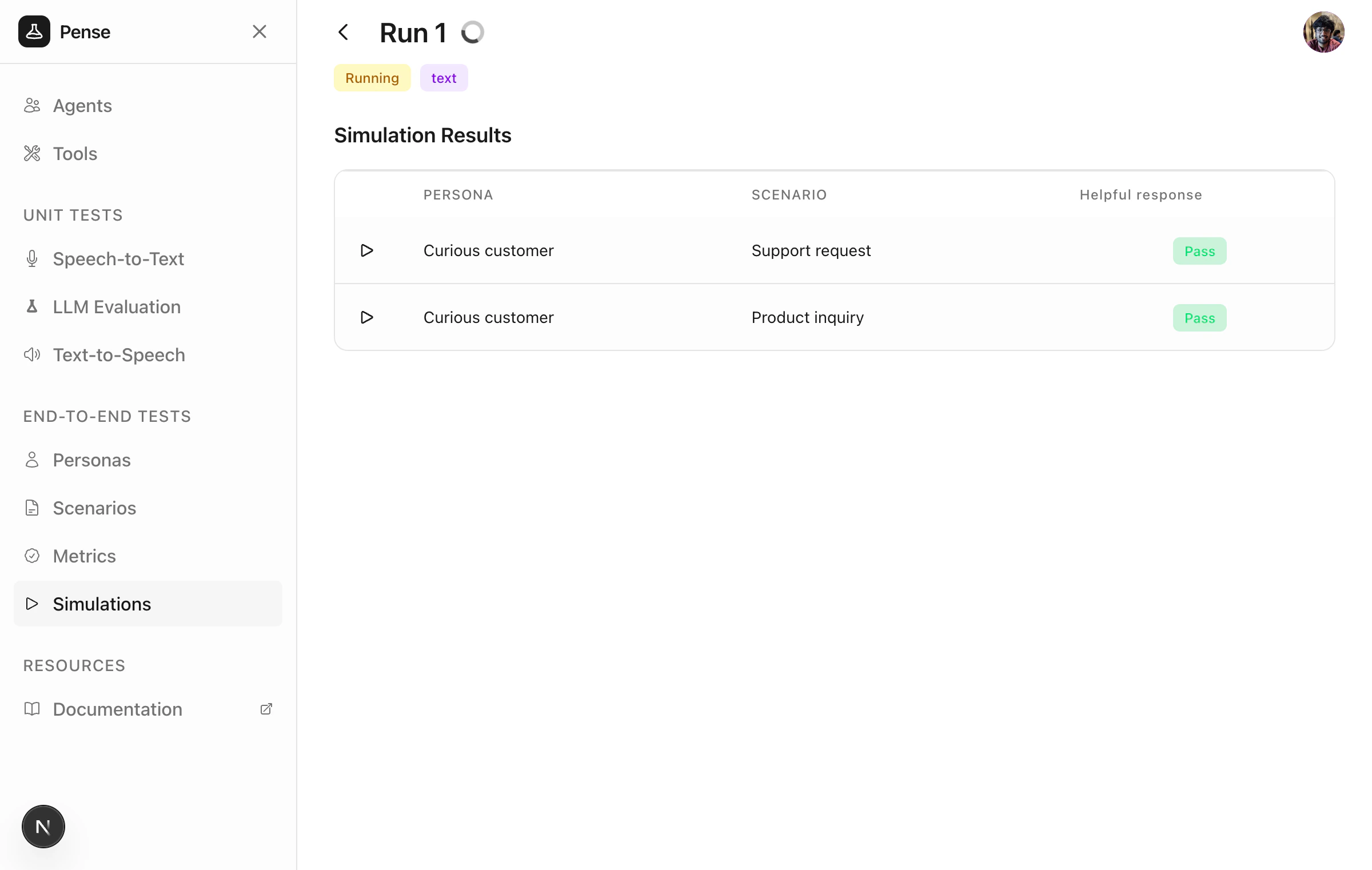
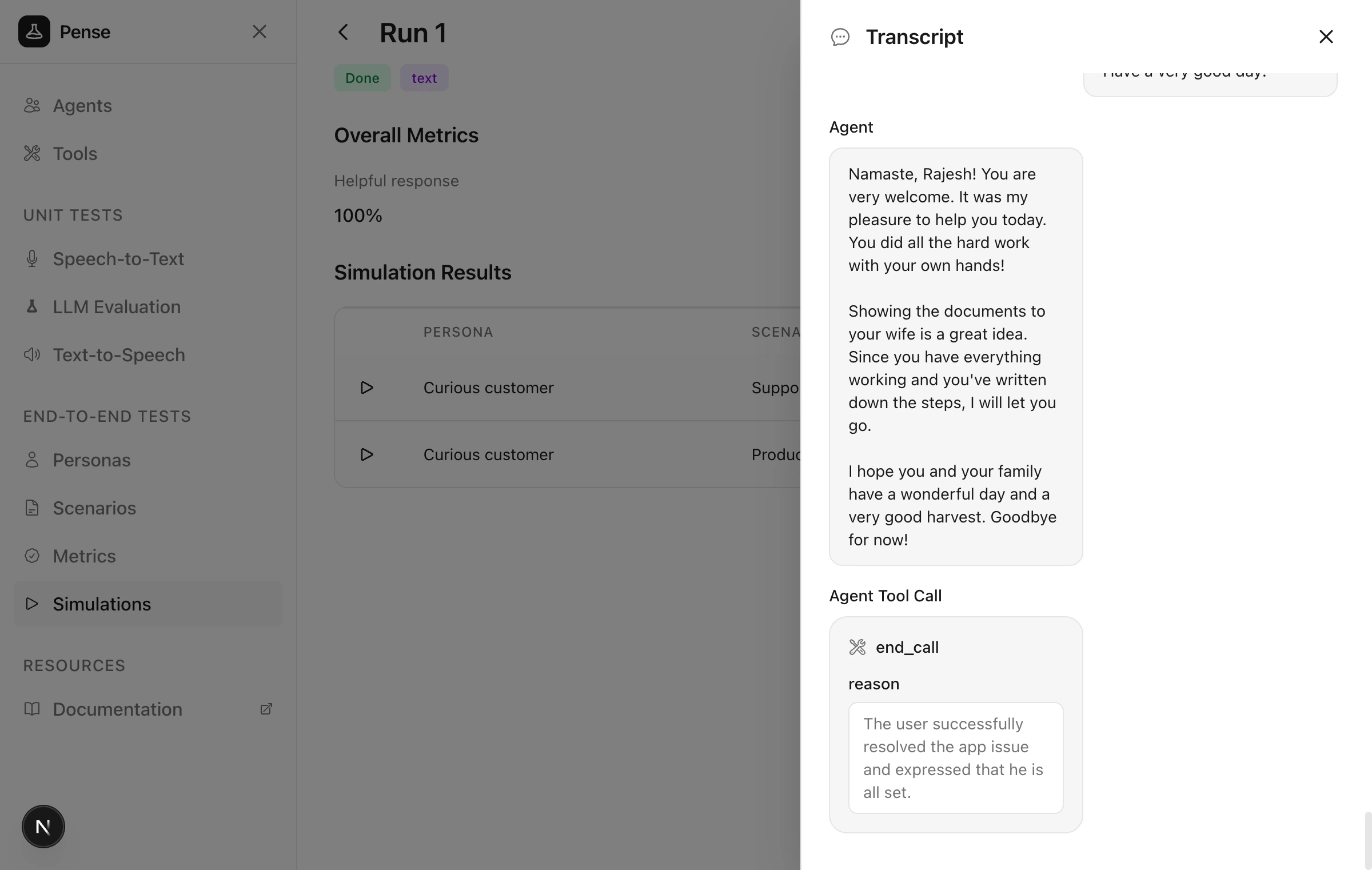
After launching a text simulation, the run page opens showing each conversation streaming in real-time.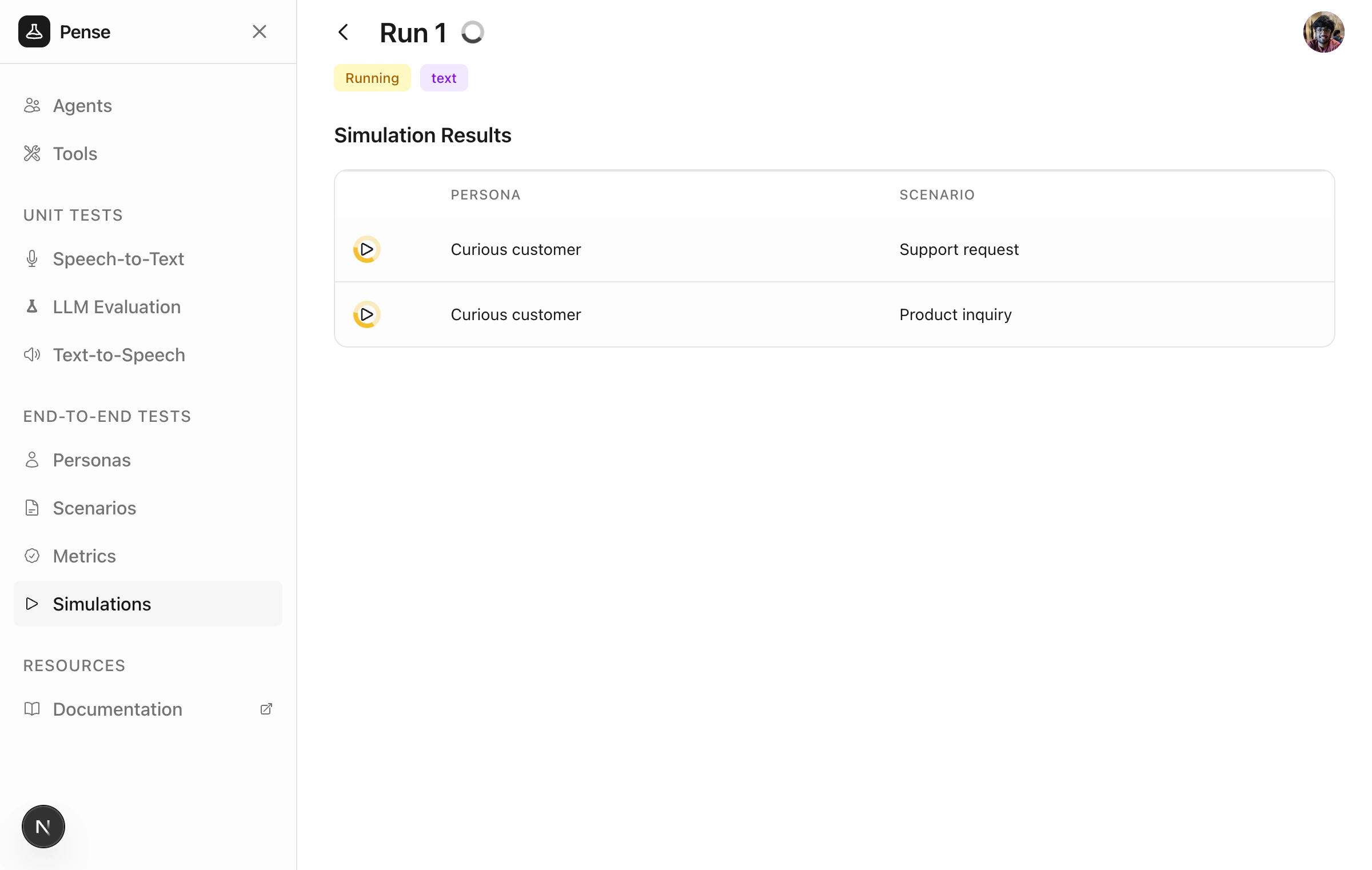
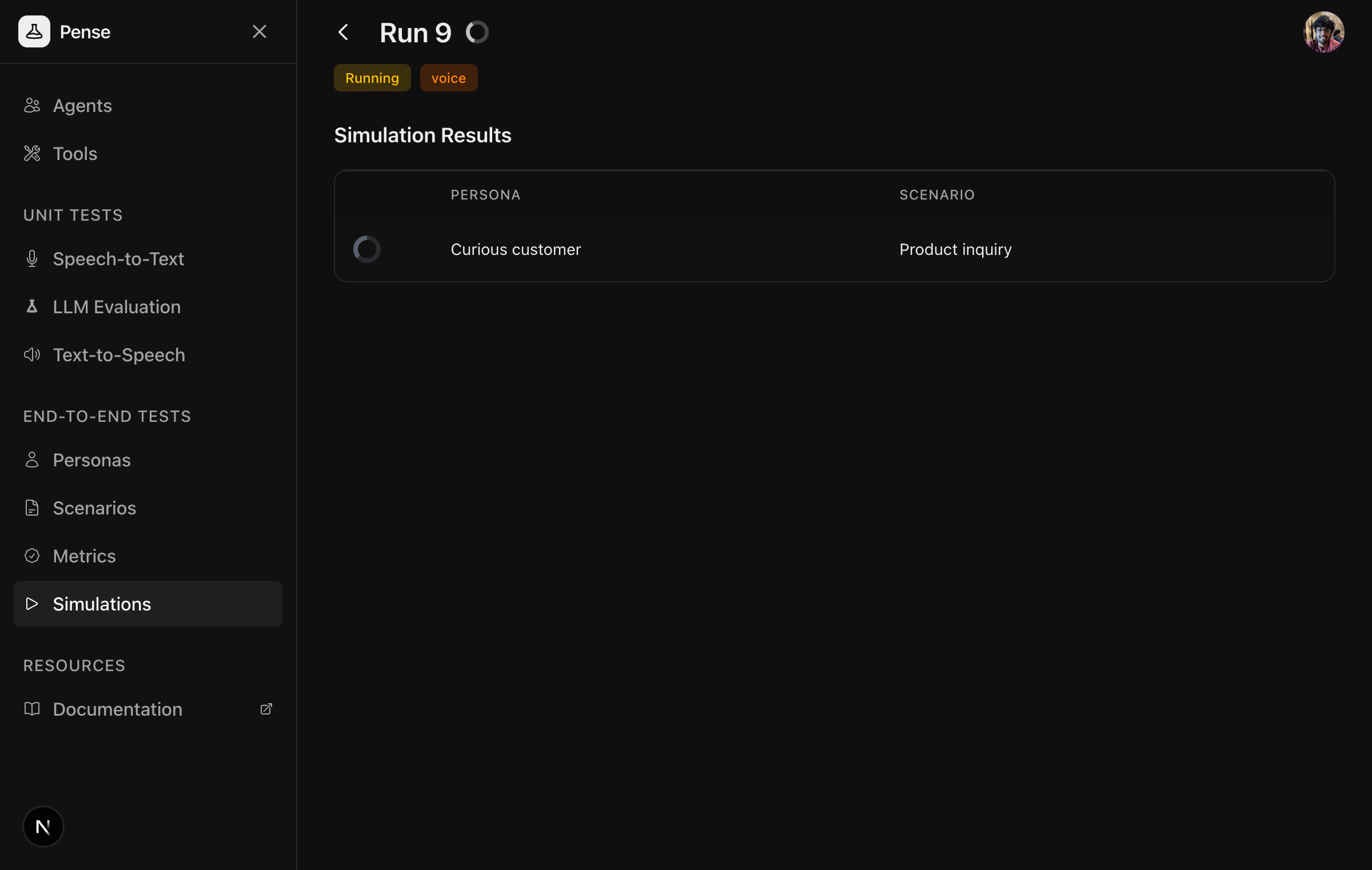
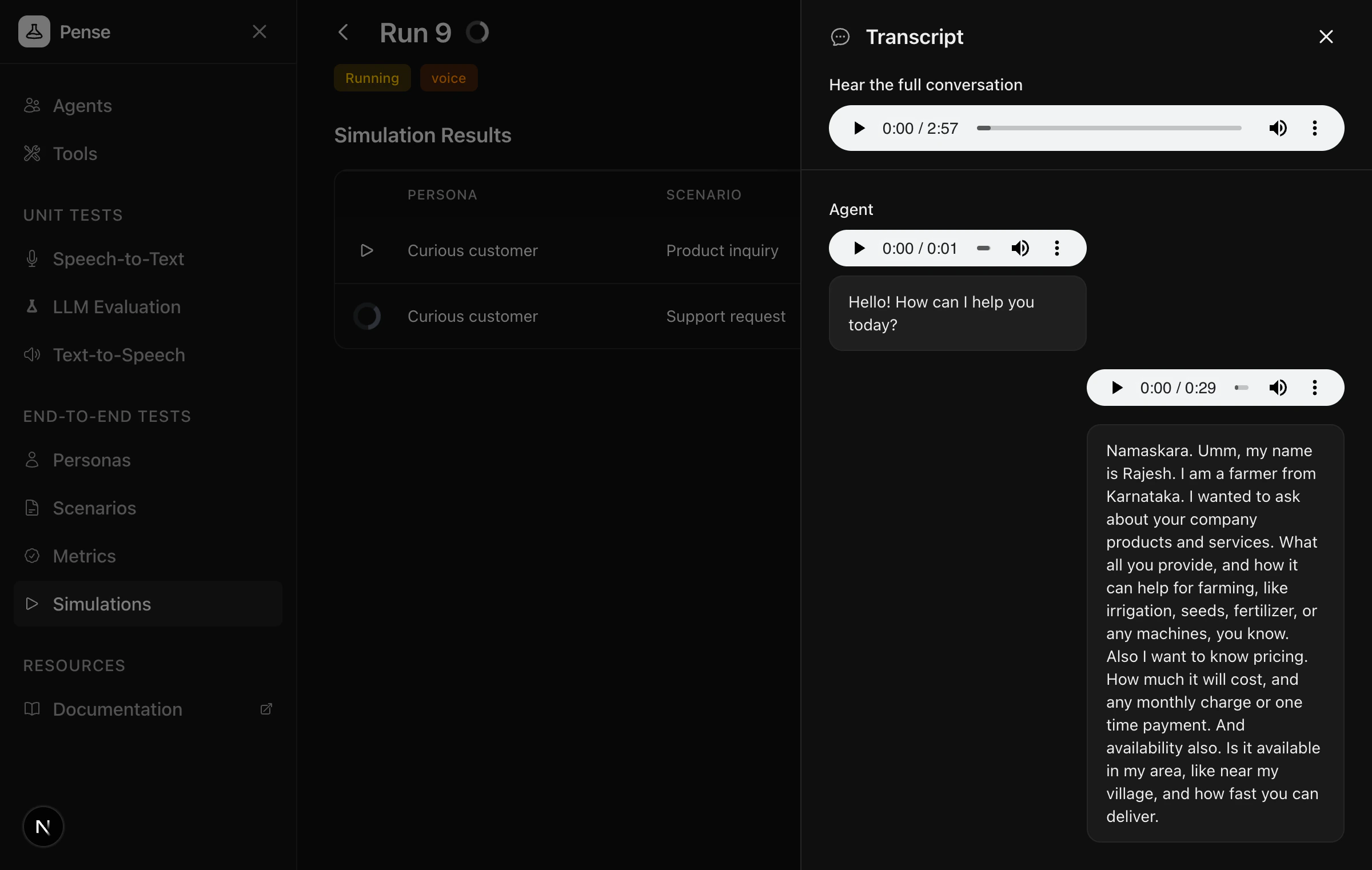
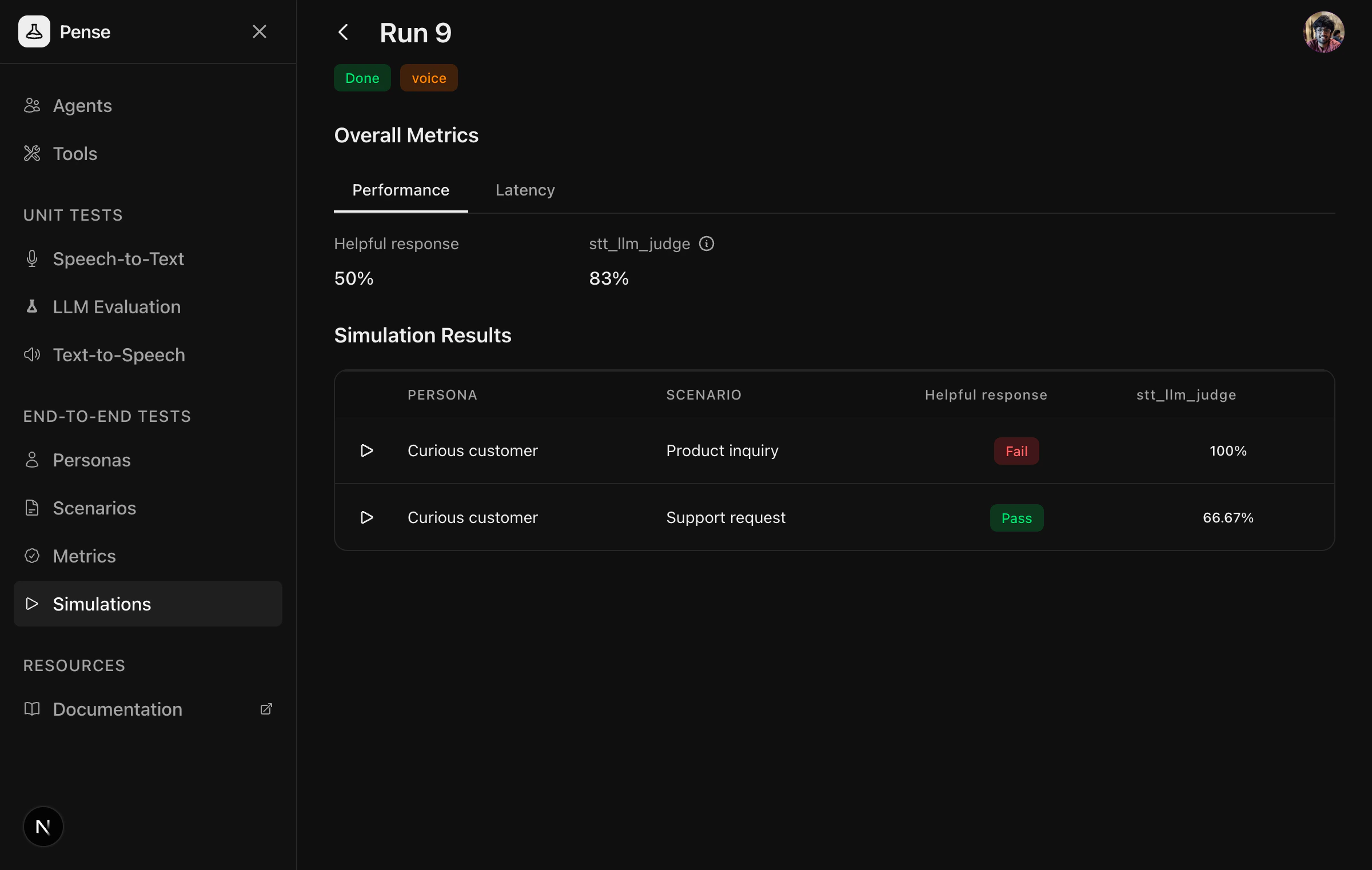
Voice simulation
Agent connections support text
simulations only. For voice simulations (with STT/TTS latency metrics),
use an agent built within Calibrate with STT and TTS
providers configured.
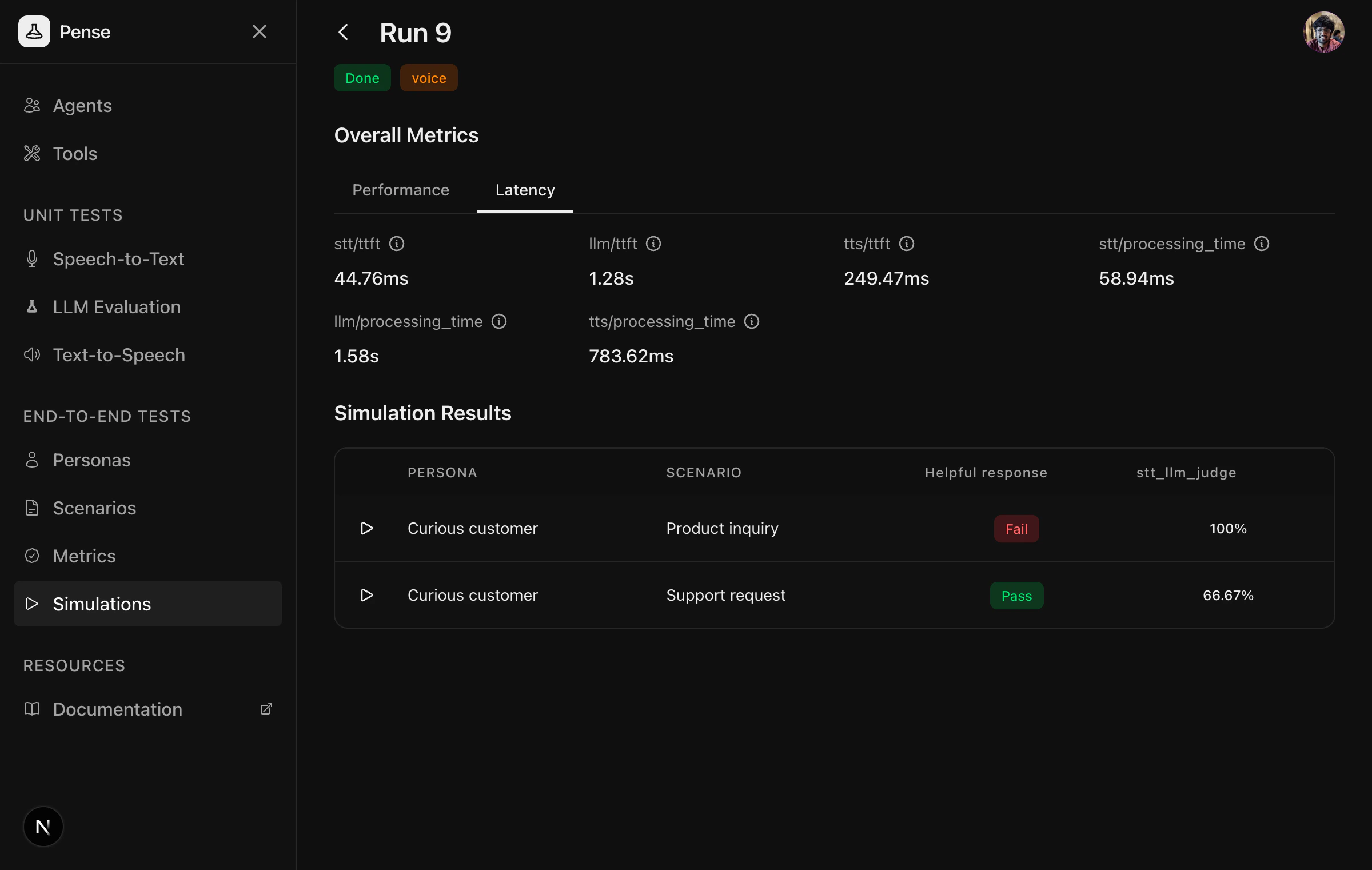
- stt/ttft and stt/processing_time — Speech-to-Text latency
- llm/ttft and llm/processing_time — LLM response latency
- tts/ttft and tts/processing_time — Text-to-Speech latency
Sharing simulation results publicly
Once a simulation run completes, you can share the results publicly. Open a completed run and click the Share button.

Next steps
Personas
Best practices for creating realistic personas
Scenarios
Best practices for creating effective scenarios