

Start a new evaluation
From the sidebar, click on Text-to-Speech to view all your evaluations and datasets. Click the New evaluation button to create a new evaluation.
Add your dataset
On the Dataset tab, choose how to provide your text samples:
Enter manually
Enter manually
Create a new dataset inline. Give it a name, then add text samples in one of two ways:
- Add samples inline — Type the text to synthesize in each row. Click + Add another row to add more entries.
-
Bulk upload via CSV — Upload a CSV file with a
textcolumn:
Use existing dataset
Use existing dataset
If you’ve already created a dataset, switch to Use existing dataset to pick from your saved datasets.
Configure settings
Switch to the Settings tab to select the language and the providers you want to compare:
Run evaluation
Click the Evaluate button at the top to start the evaluation. You’ll be redirected to the results page where you can monitor progress in real-time.View results
Outputs
The Outputs tab shows per-provider results. Select a provider from the list on the left to see its overall metrics and per-sample results.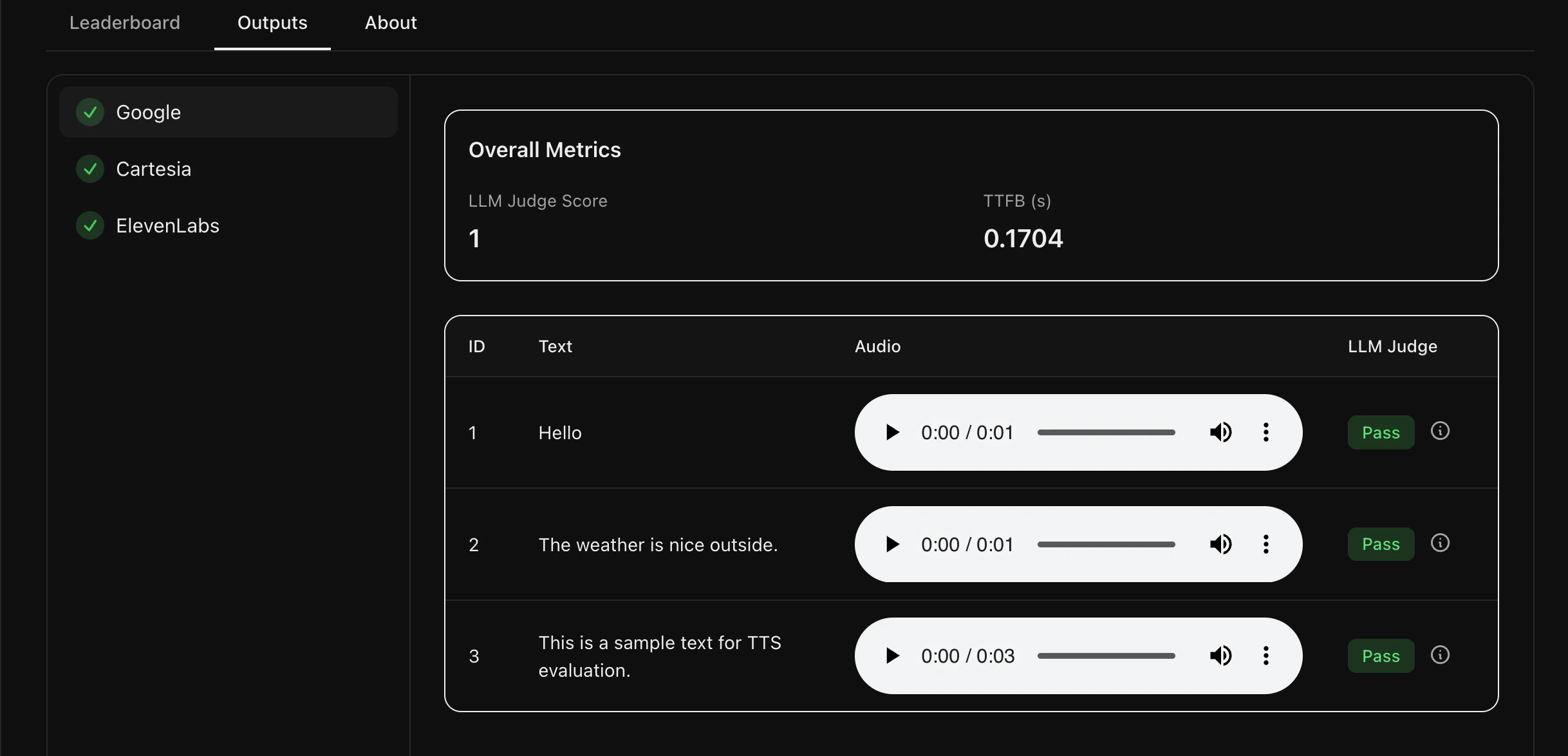
- Text — The input text you provided
- Audio — An inline audio player to listen to the generated speech
- LLM Judge — Pass/Fail based on audio quality evaluation
Leaderboard
The Leaderboard tab shows a side-by-side comparison across all providers with aggregated metrics and bar charts.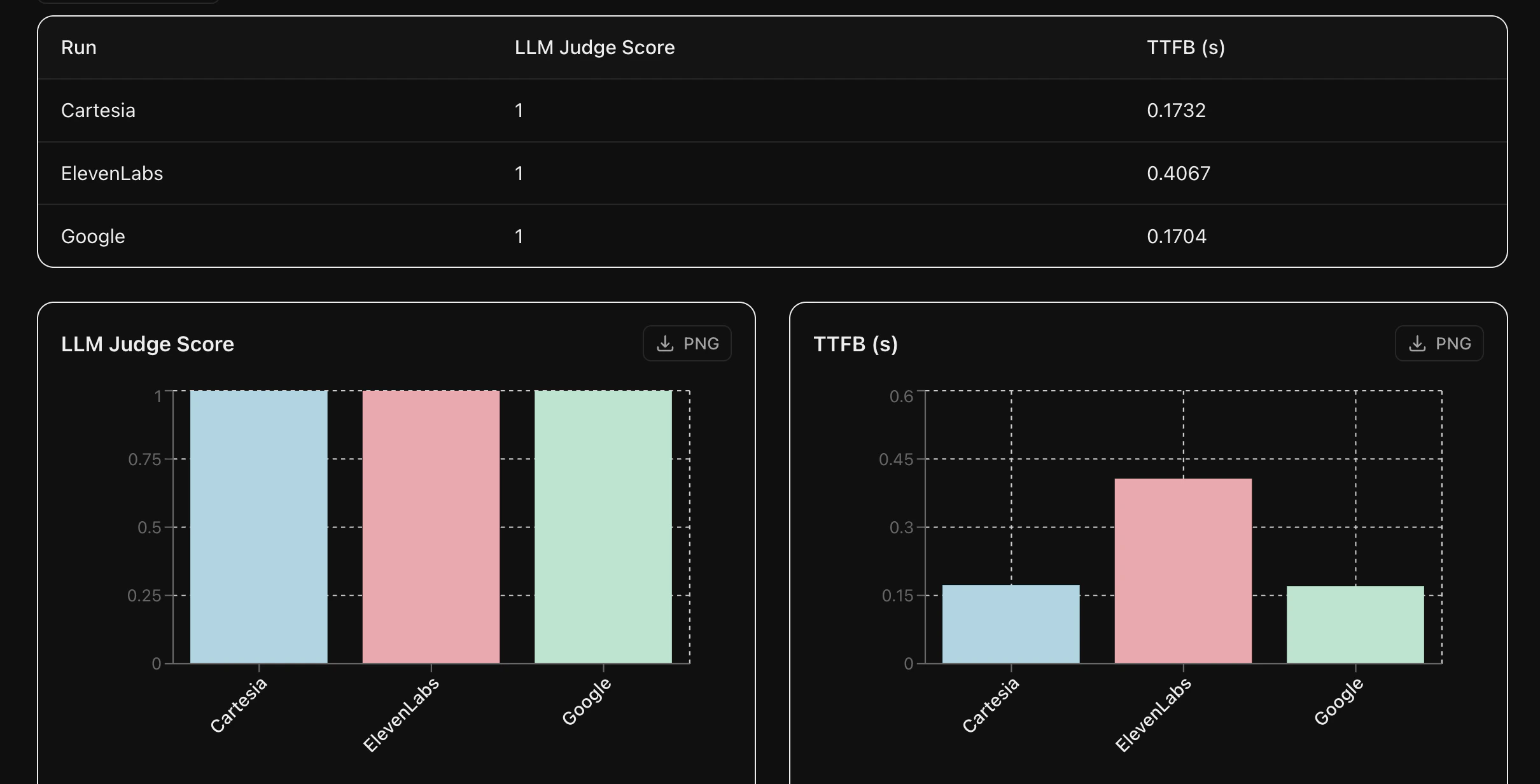
Sharing results publicly
Once your evaluation completes, you can make the results publicly accessible by clicking the Share button on the results page.

Next steps
Core Concepts
Learn about TTS metrics — LLM Judge Score and TTFB
Datasets
Save and reuse text samples across multiple evaluations
Simulations
Run simulated conversations with your agent