

Create an agent
From the sidebar, click Agents → New agent. You have two options for setting up your agent:
Build your agent in Calibrate
Build your agent in Calibrate
Configure the LLM/STT/TTS models, set instructions, and define the tools your agent can use — all within Calibrate.See our Core Concepts: Agents guide for the full setup.
Connect your existing agent
Connect your existing agent
If you already have a deployed agent, you can connect it to Calibrate via its HTTP endpoint. Calibrate will call your agent directly to run simulations.See our Core Concepts: Agent Connections guide for the full setup.
Agent connections support text simulations only. For voice simulations (with STT/TTS latency metrics), use an agent built within Calibrate with STT and TTS providers configured.
Create your first test case
Open the LLM tests tab and click on Add test to create a new test.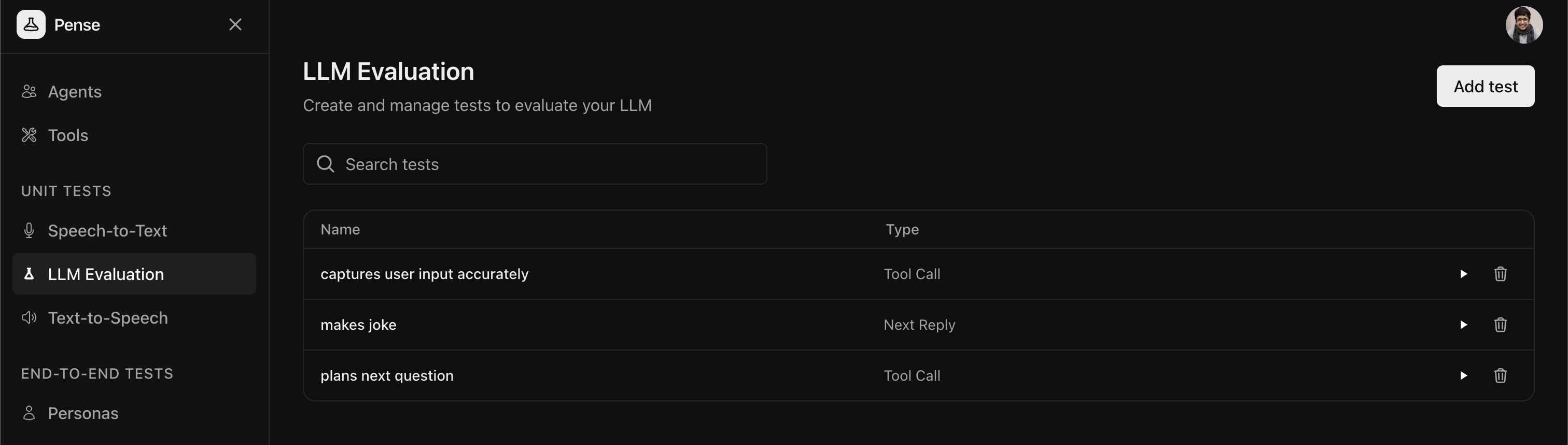
Next Reply Test
Next Reply Test
These tests verify your agent responds appropriately to the last user
message given a conversation history defined by you by checking if the
agent’s response meets your criteria (for example, tone, content, or
accuracy).
Tool Invocation Test
Tool Invocation Test
These tests verify that your agent calls the correct tools with the right
parameters given a conversation history defined by you.
Create a next reply test
Next reply tests verify that your agent response adheres to your criteria given a conversation history defined by you.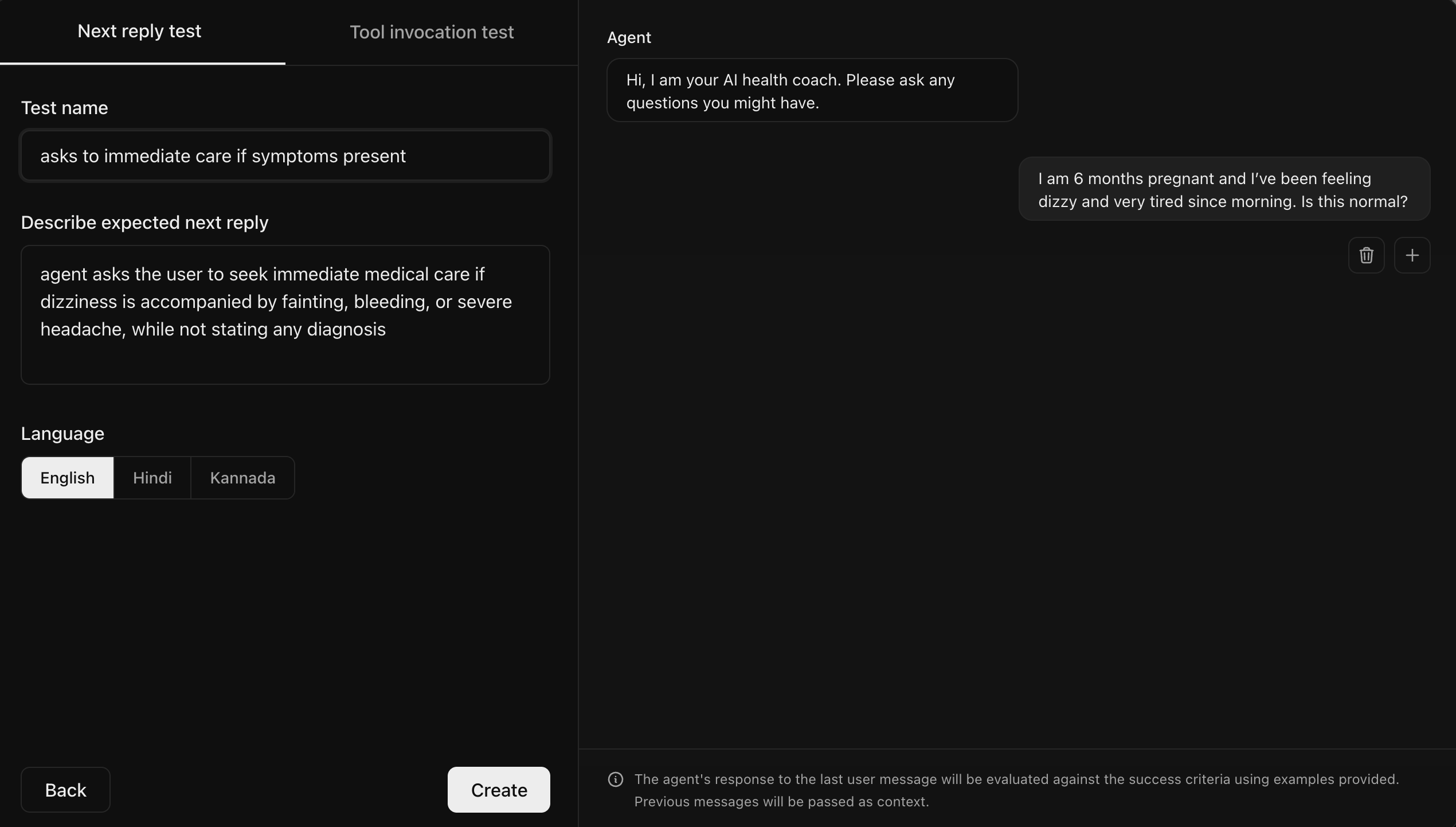
Create a tool invocation test
Tool invocation tests verify that your agent calls the correct tools with the right parameters given a conversation history defined by you.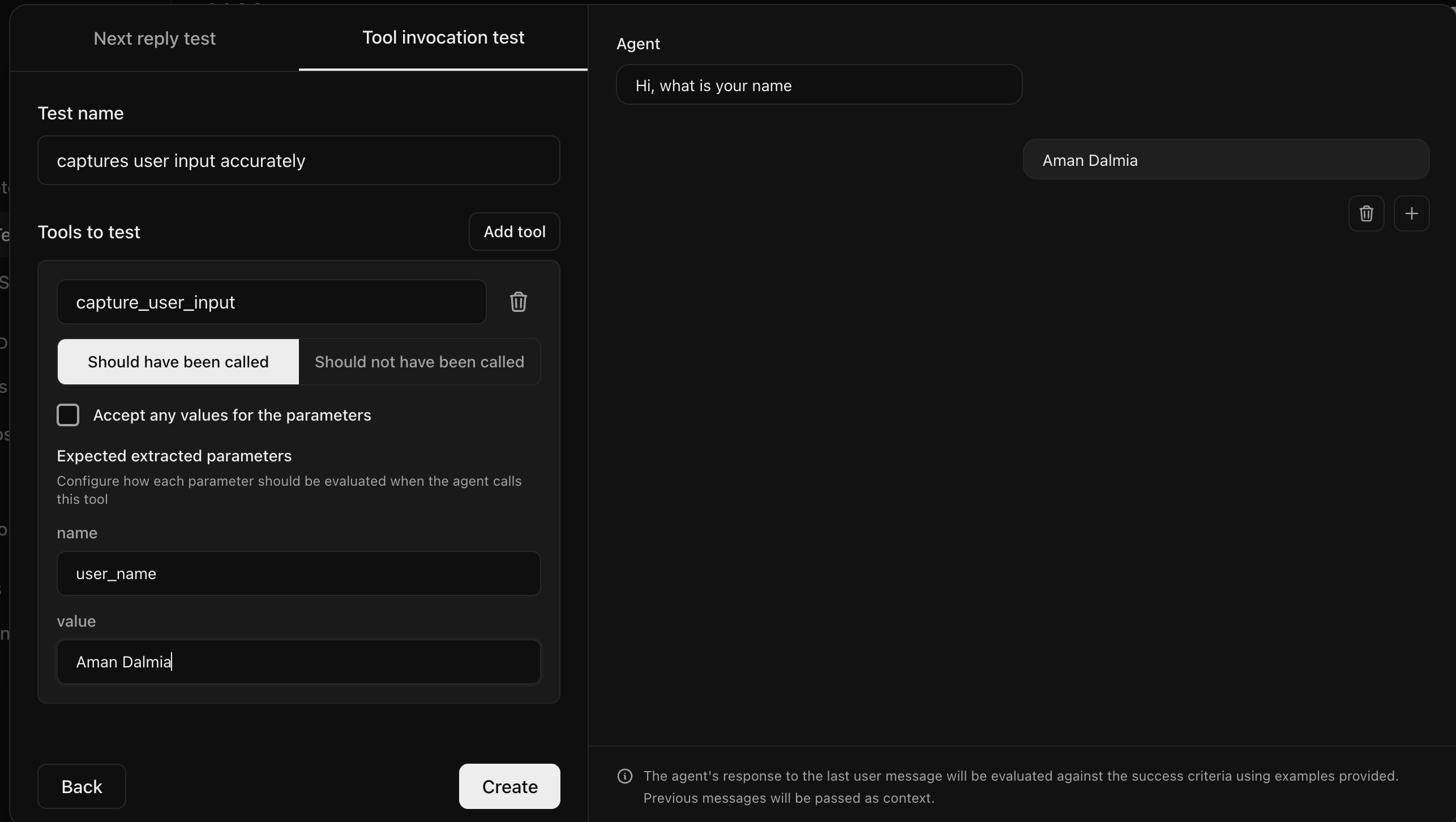
Run one test on one agent
Once the test is created, you can click on the play button to run that test.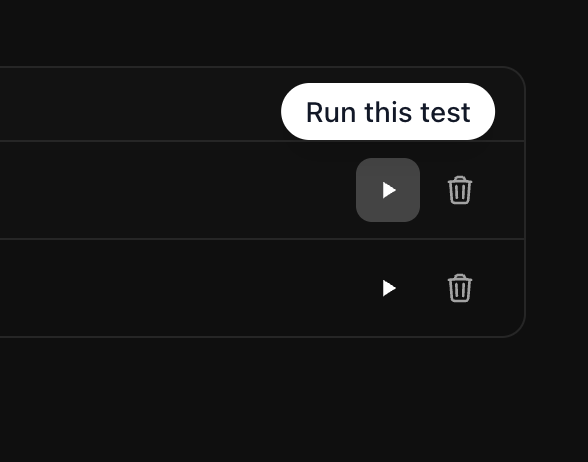
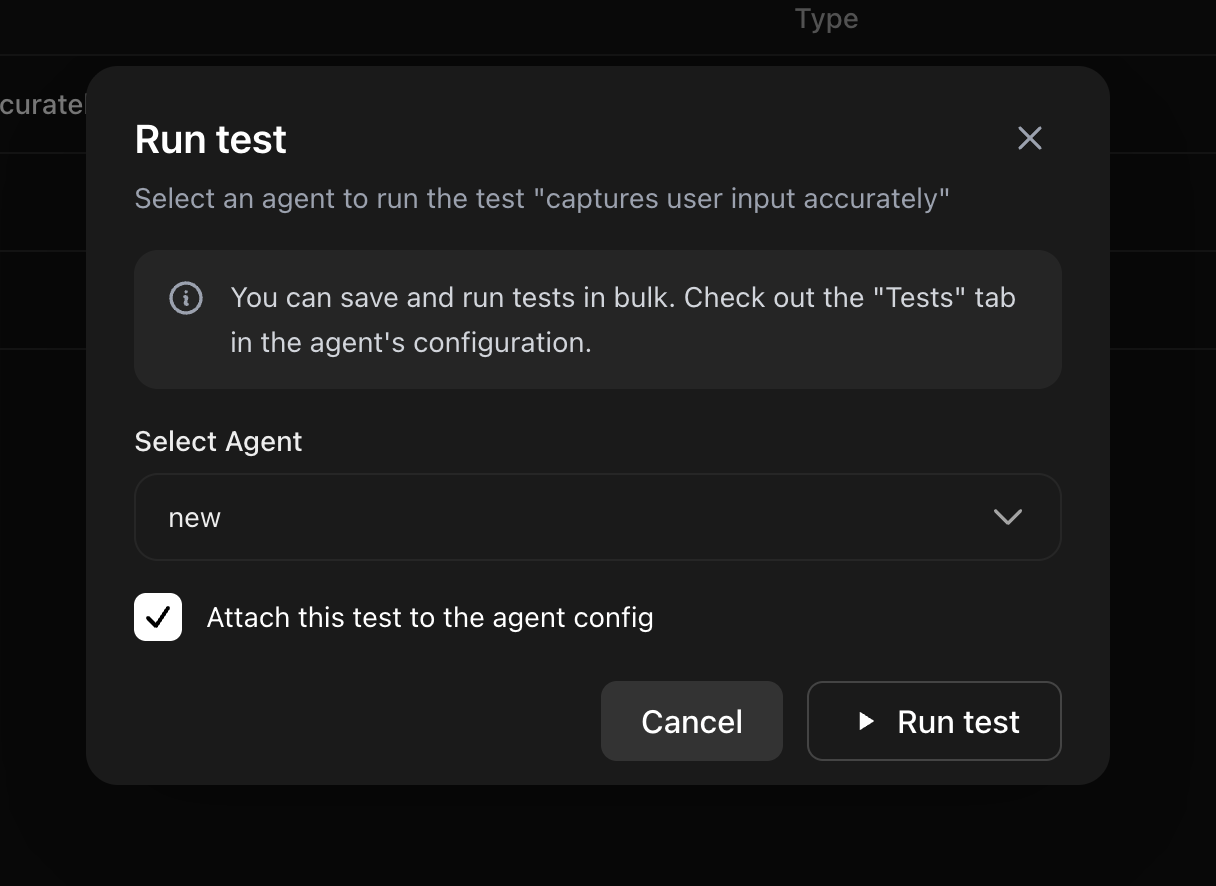
Selecting the Attach this test to the agent config checkbox will attach
the test to the list of all tests for the selected agent
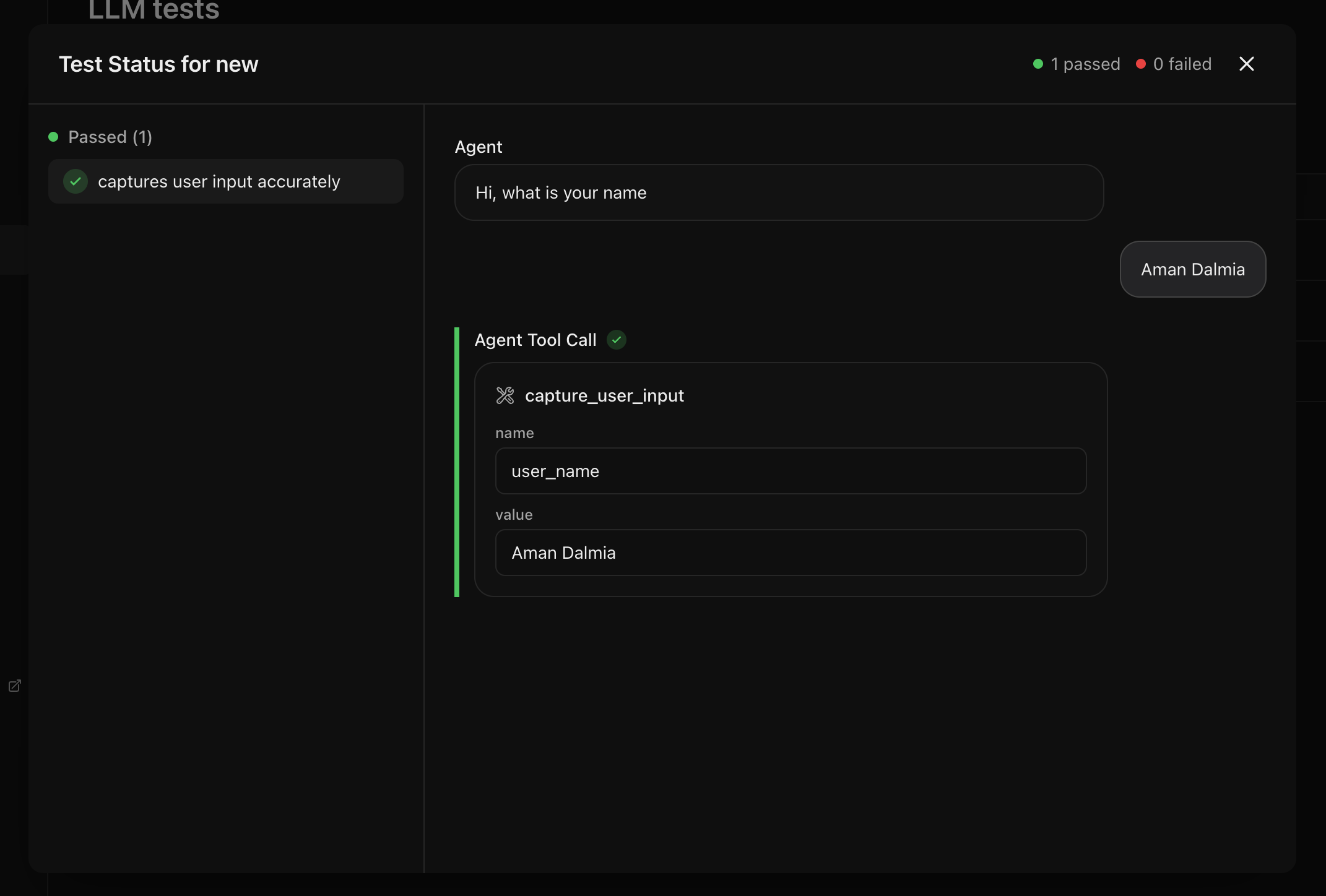
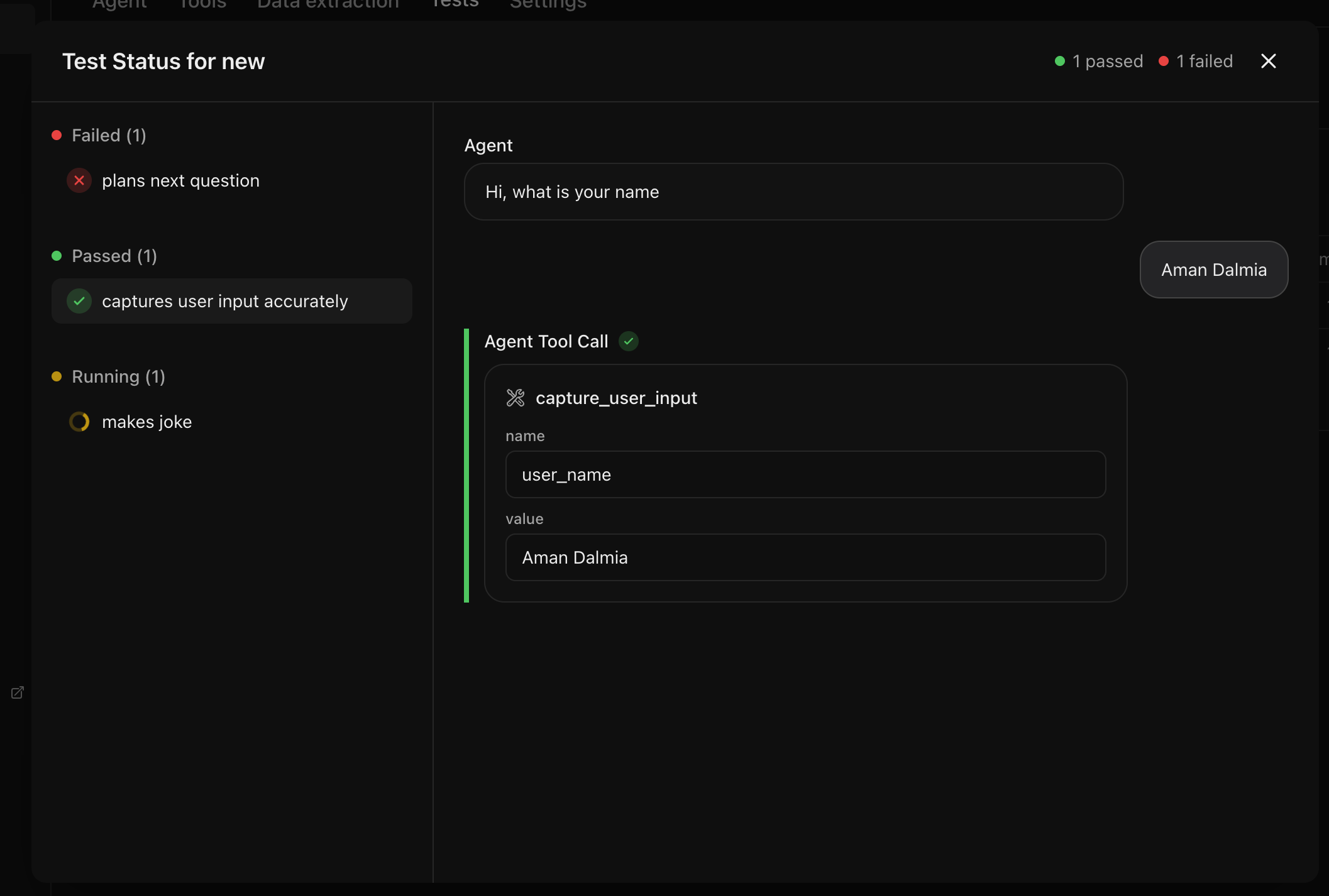
Run all tests for one agent
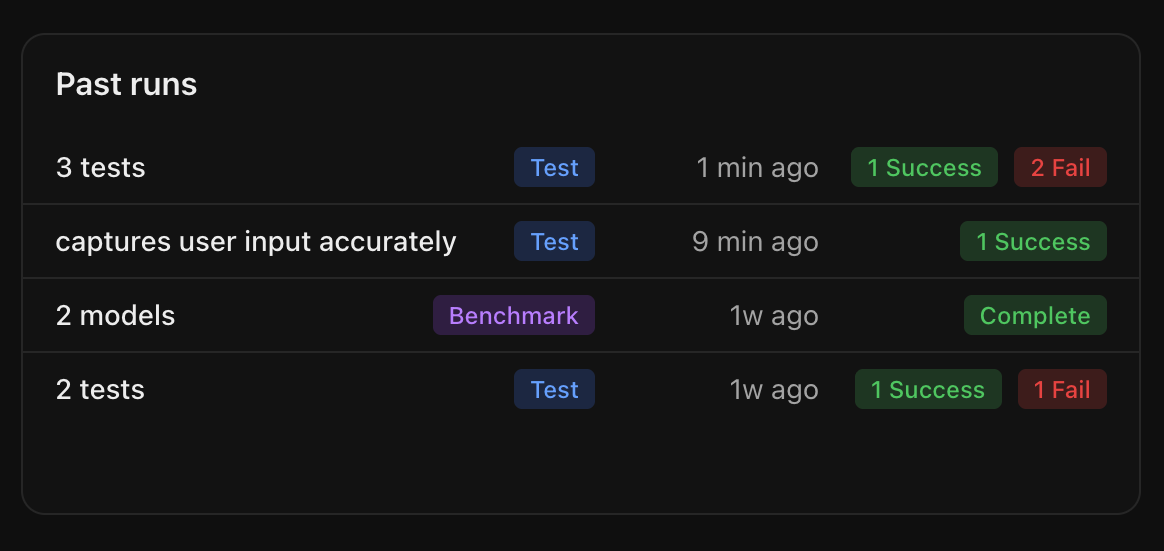
Navigate to the Tests tab of the agent you want to test. You can add new tests by selecting the Add test button or run the existing tests by clicking the Run all tests button.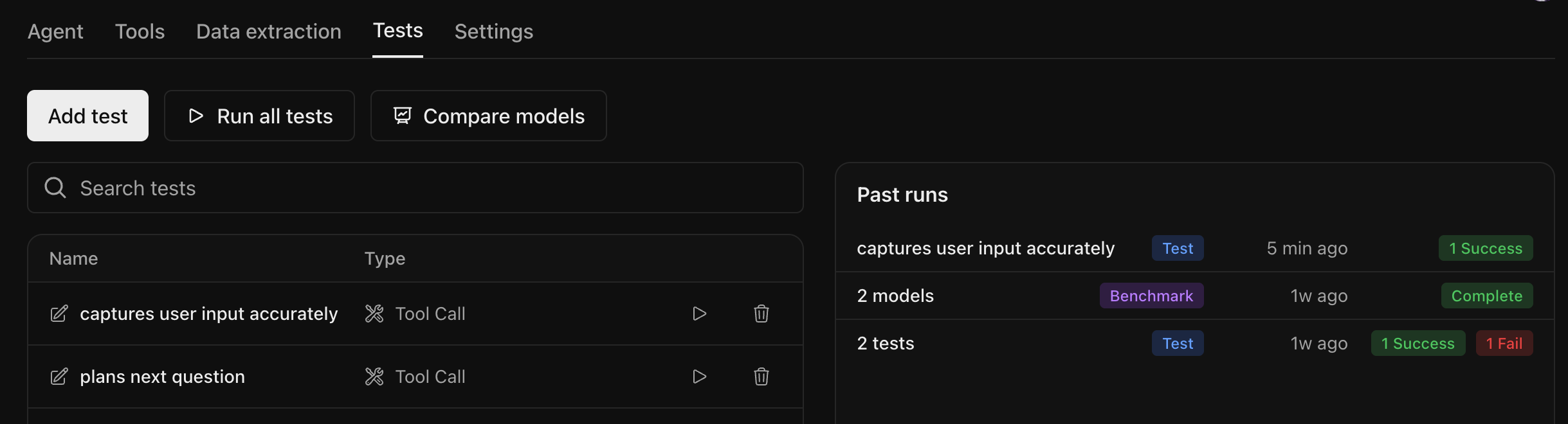
Find the best LLM for your agent
The tests above are run using the LLM configured for that agent. But it may not be the optimal model for your use case. You can compare the performance of different LLMs on your tests by clicking the Compare models button.Model selection
You can select upto 5 models that you want to compare and select Run comparison to start the evaluation.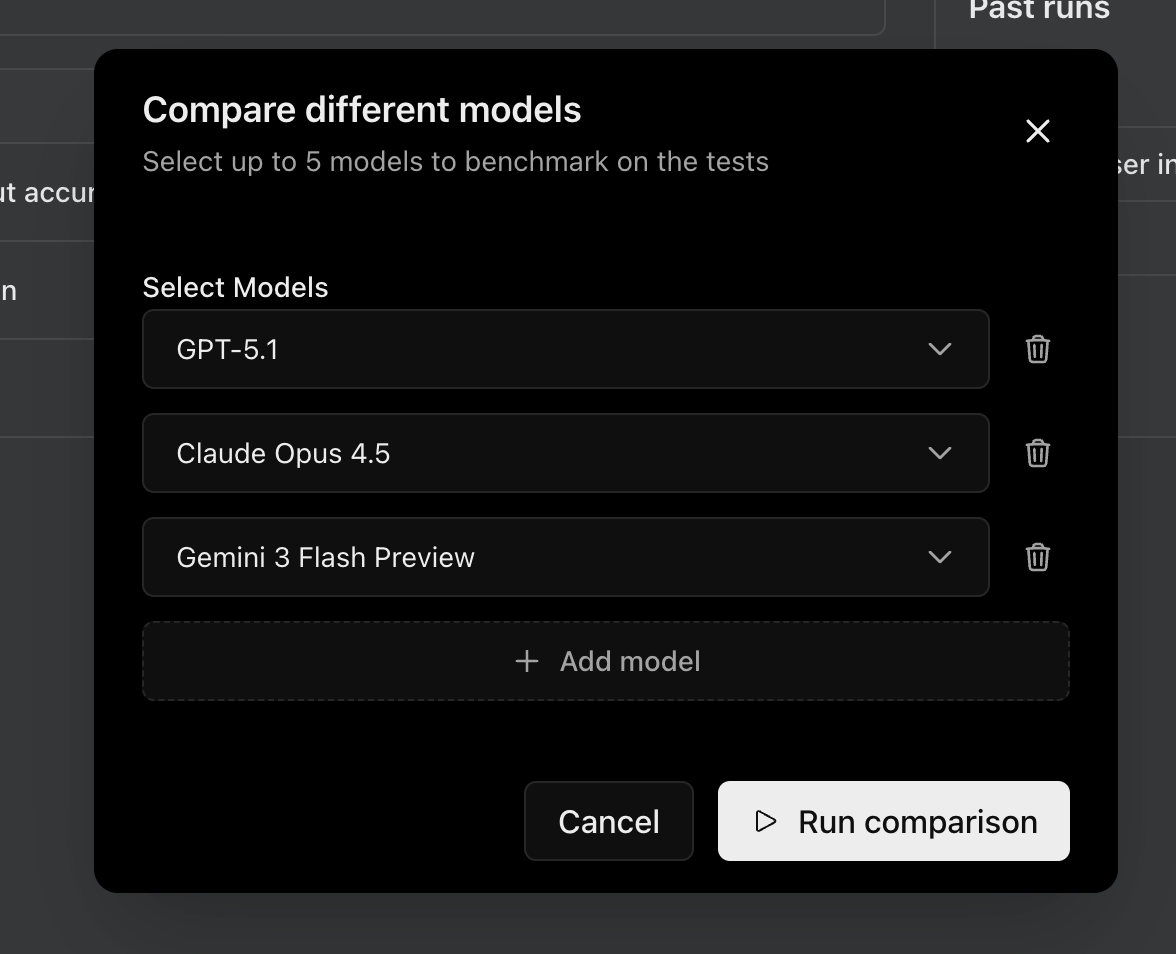
For agent connections, only models valid for the provider selected on the agent’s connection page are shown:
- If you chose OpenRouter as your provider, any model supported on OpenRouter can be selected.
- If you chose OpenAI, Anthropic, Google, or another specific provider, only models from that provider are shown.
Verifying agent connection
For agent connections, Calibrate verifies your agent on a sample input with each selected model before the benchmark can run. Every model you add to the comparison shows one of these states next to it:- not checked — Just added, never verified with this model
- verified — Verified
- failed — Verification failed; the error message is shown along with the actual output received from your agent so you can debug


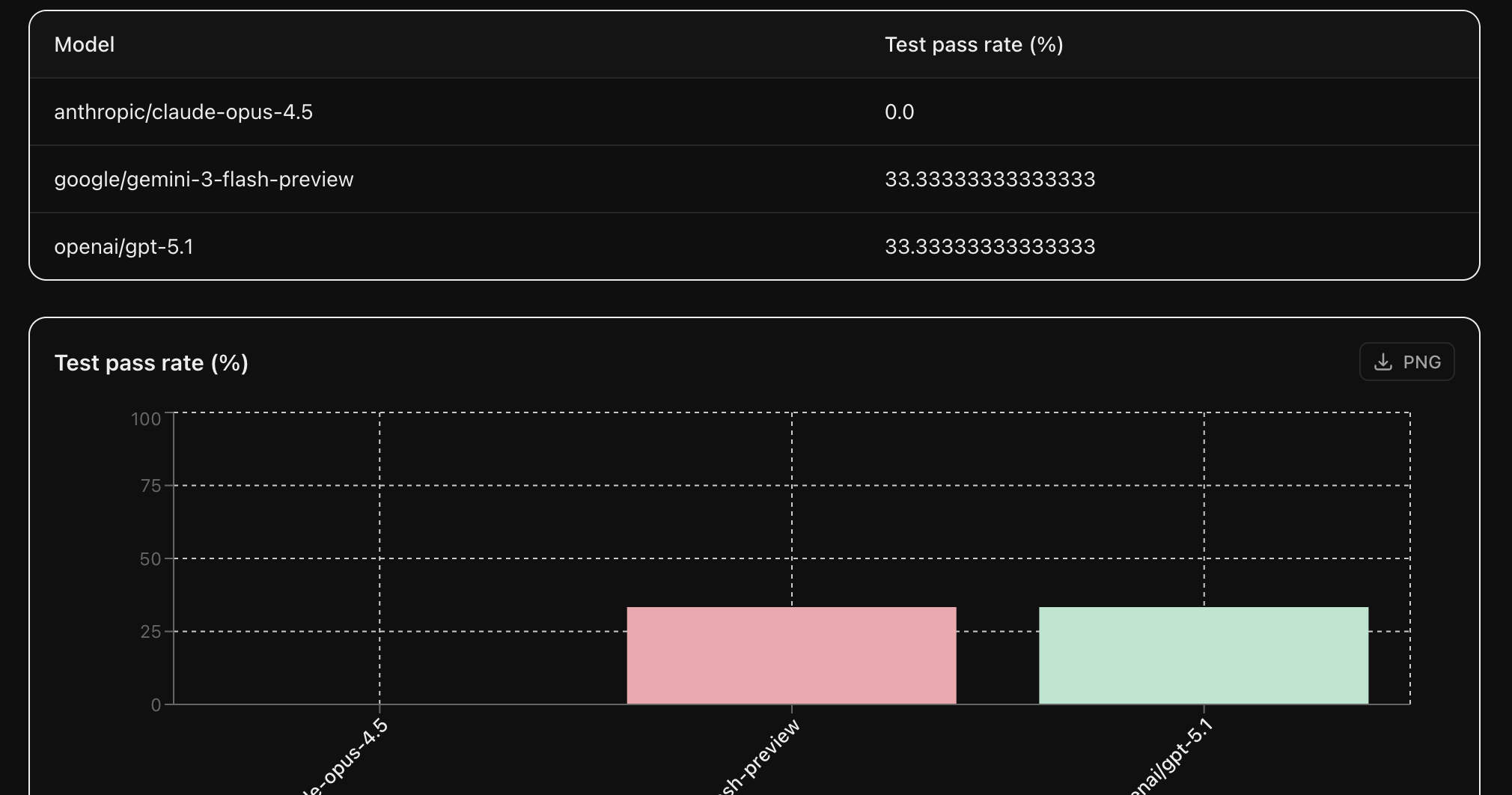
Leaderboard
You will see the status of each test for each provider updating as it completes.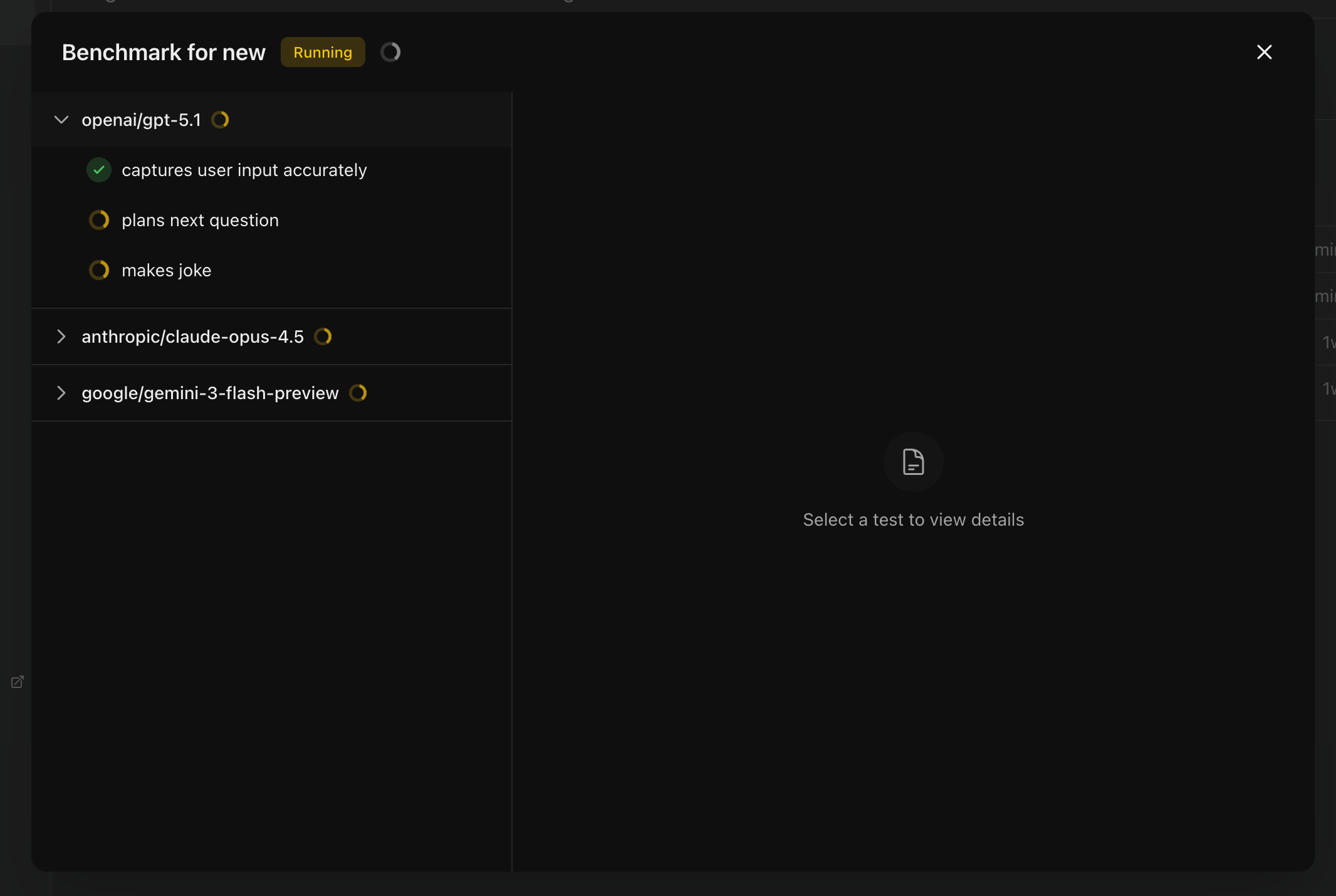
Sharing your results publicly
You can make any completed test run or benchmark publicly accessible.Sharing a test run
Open a test run and click the Share button to make it public.


Sharing a benchmark
For sharing a benchmark, follow the same steps as sharing a test run.

Bulk upload tests
If you have many test cases, you can upload them all at once via CSV. Click Bulk upload on the LLM Evaluation page.

- Select the test type: Next Reply or Tool Call
- Select the Language (English, Hindi, or Kannada)
- Upload a CSV file or drag and drop it
Next Reply CSV format
Next Reply CSV format
Your CSV should have three columns:
Tool Call CSV format
Tool Call CSV format
Your CSV should have three columns:
Each tool call object supports these fields:
- (Optional) Tick Assign tests to agents and pick one or more agents — the uploaded tests are automatically added to each selected agent’s test list, so you don’t have to attach them manually later.

Next steps
Text to Speech
Evaluate TTS providers on your dataset